

This section describes the process of registering (creating) and publishing programs. The basic workflow uses a gnID chain to instantiate each subsequent object, as shown in the following diagram for creating a Movie.
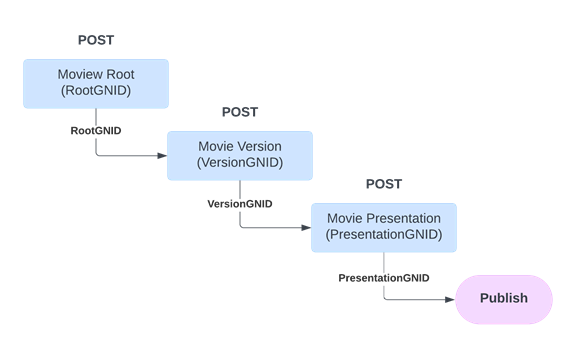
Here are the general steps to create program assets:
- Create the first program.
- Construct the first object's request body in JSON.
- Execute the object's POST method to create it.
- Copy the object's gnID from its 200 response body for the next steps.
- Create the next program.
- Construct the next program's request body in JSON.
- Enter the first program's gnID in the next program's POST method and execute it to create it.
- Copy the program's gnID from its 200 response body for the next steps.
- Repeat this pattern for each subsequent program.
Create Movie Assets
Create a Movie Root
- Construct the Movie Root request body in JSON.
- Execute the POST/movies method to create (register) the Movie Root.
- Copy the Movie Root's gnID (rootGnID) from the 200 response body for the next steps.
Create the Movie Version
- Construct the Movie Version request body in JSON.
- Enter the Movie Root's gnID from the previous step into the POST/movies/{rootGnID}/versions method. Execute the method to create (register) the Movie Version.
- Copy the Movie Version's gnID (versionGnID) from the 200 response body for the next steps.
Create the Movie Presentation
The Movie Presentation is the business object that will become associated to the Gracenote Certified data set and mapped to TMS IDs when published.
- Construct the Movie Presentation request body in JSON.
- Enter the Movie Version's gnID (versionGnID) from the previous step into the POST /movies/versions/{versionGnID}/presentations method. Execute the method to create (register) the Movie Presentation.
- Copy the Movie Presentation's gnID from the 200 response body when publishing the presentation using the POST /publish method.
Create Show (Series) Assets
Create a Show (Series) Root
- Construct the Show (Series) Root request body in JSON.
- Execute the POST/shows method to create (register) the Show (Series) Root.
- Copy the Show Root's gnID from the 200 response body for the next steps.
Create the Show (Series) Version
- Construct the Show (Series) Version request body in JSON.
- Enter the Show Root's gnID from the previous step into the POST/shows/{rootGnID}/versions method. Execute the method to create (register) the Show Version.
- Copy the Show Version's gnID from the 200 response body for the next steps.
Create the Show (Series) Presentation
The Show Presentation is the business object that will become associated with the Gracenote Certified data set and mapped to TMS IDs when published.
- Construct the Show Presentation request body in JSON.
- Enter the Show Version's gnID (versionGnID) from the previous step into the POST /show/versions/{versionGnID}/presentations method. Execute the method to create (register) the Show Presentation.
- Copy the Show Presentation's gnID from the 200 response body to use when publishing the presentation using the /publish method and to associate the presentation with the Seasons and Episodes of a Series.
Create Seasons and Episodes of a Show (Series) Presentation
If a Show is episodic, its presentations will represent the Series level. Follow these steps to create a Season and Episode.
Create the Season
- Create a Show Presentation as described above.
- Construct the Presentation's Season request body in JSON.
- Enter the Show Presentation gnID from the previous step into the POST/shows/versions/presentations/{gnID}/seasons method. Execute the method to create (register) the Season.
- Copy the Season's gnID from the 200 response body to create an Episode.
Create the Episode
- Construct the request body in JSON for the Episode belonging to the Season.
- Enter the Season gnID from the previous step into the POST /shows/versions/presentations/seasons/{GnID}/ episodes method. Execute the method to create the Episode.
- View the 200 response body to get the Episode Presentation's gnID to publish the presentation using the POST/publish method.
Create Catalogs and Add Presentations
To create Catalogs:
- Create a Catalog via POST /catalogs.
- View the 200 response body to get the Catalog's gnID.
- To add a Presentation to the Catalog, include the above Catalog gnID and the gnID of the Presentations to add.
Create Multiple Programs as a Batch
The GN IDS API supports bulk program registration to upload metadata for multiple programs at the same time. Using this process, you can:
- Create new program hierarchies - new movie root, version, and presentation
- Extend existing program hierarchies- new seasons and episodes for existing shows, for example.
Each batch you upload is validated on submission to check for missing fields, value types, etc. Gracenote processes batches asynchronously in the background, and any results/errors are added to the batch to notify Gracenote.
Important: Bulk program upload process is for program registration only. You cannot use it for program updates or publishing requests. Also, to register and link images to programs created with bulk program registration, use the GN IDS Web App.
Create a Movie as a Batch
To create a new movie root, version, and presentation simultaneously:
- Use the gnids.gracenote.com/api/v1/bulk/movies/batches endpoint. Successful creation will return the batch gnID.
Example
Code
Create a Season and Episodes as a Batch
To create a new season and episodes for an existing show:
- Instead of the 'roots' field, use the 'presentation' field and supply the show's presentationGnID.
Example
Code