

Schedules
To look up and download TV schedules.
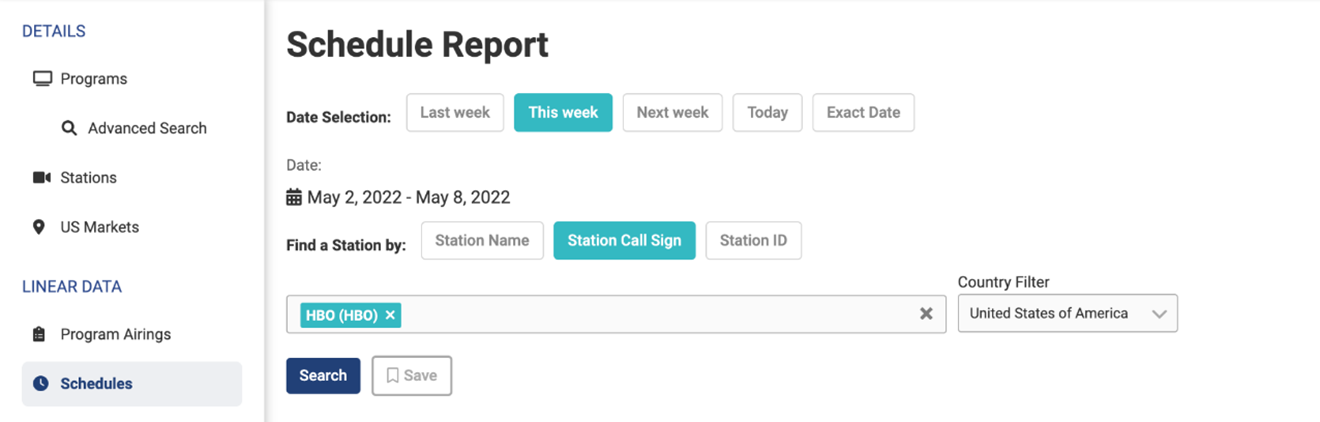
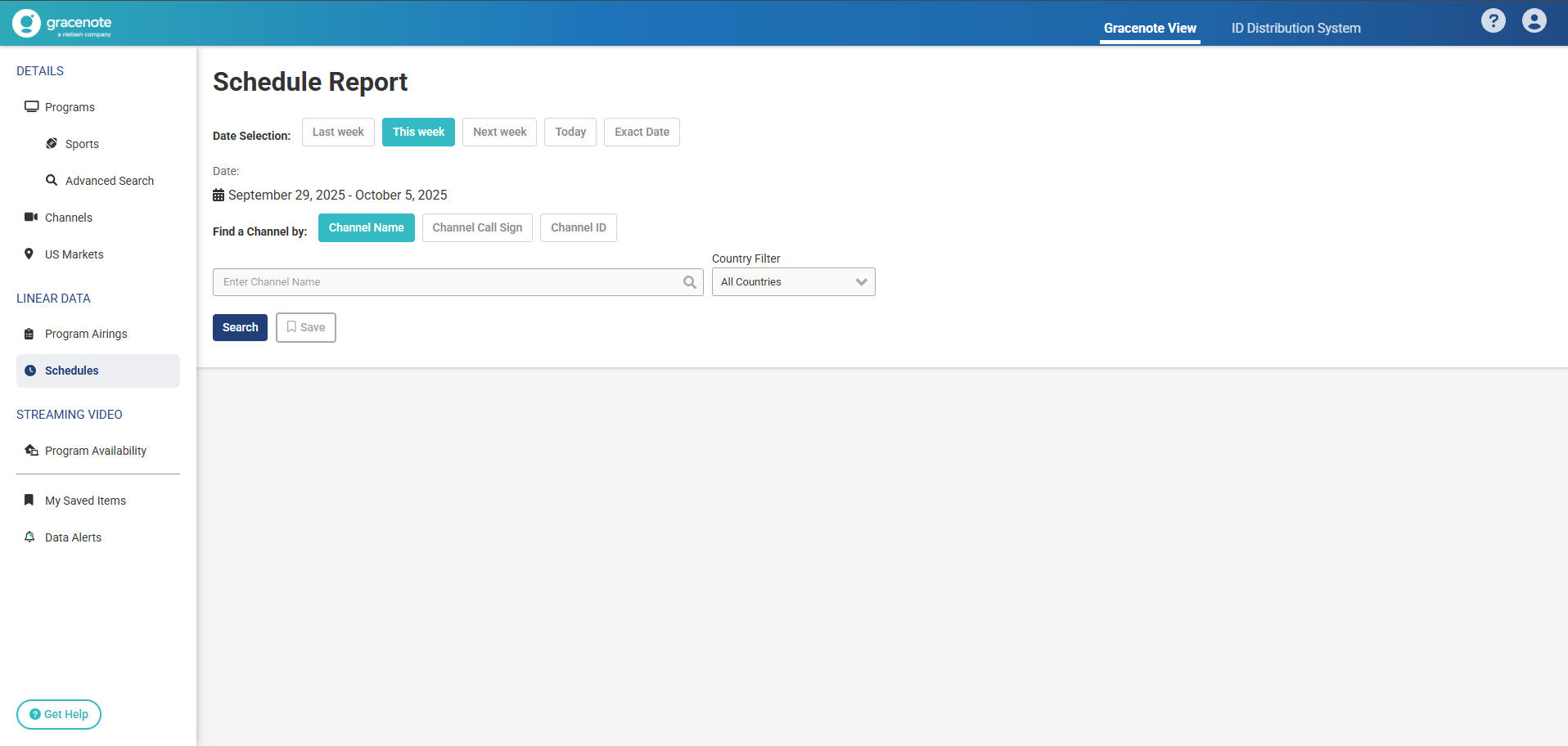
- Select Schedules from the navigation bar on the left.
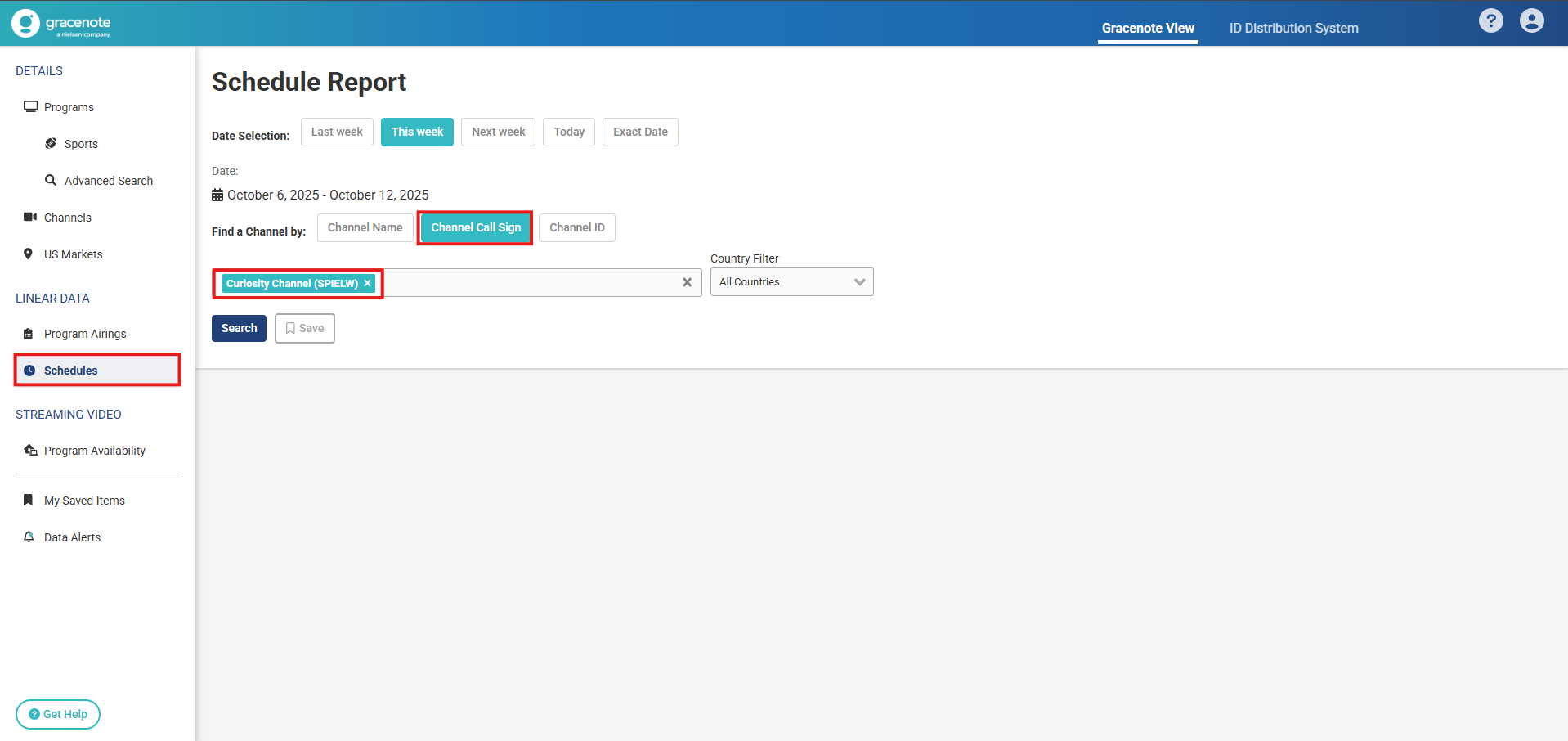
- Select Last Week, This Week, Next Week, Today, or go to Exact Date up to 6 months in the past and 42 days in the future.
- Find the target Station Name or Call Sign.
- Click Search or Save if you want a shortcut to re-run this in the future.
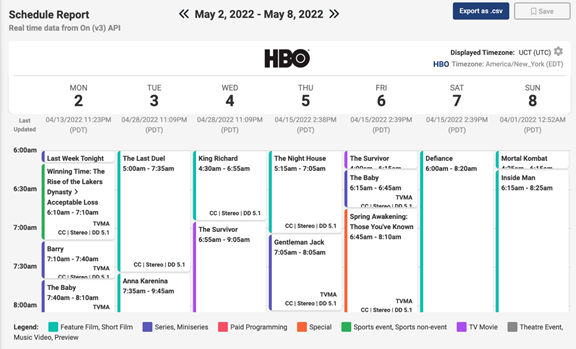
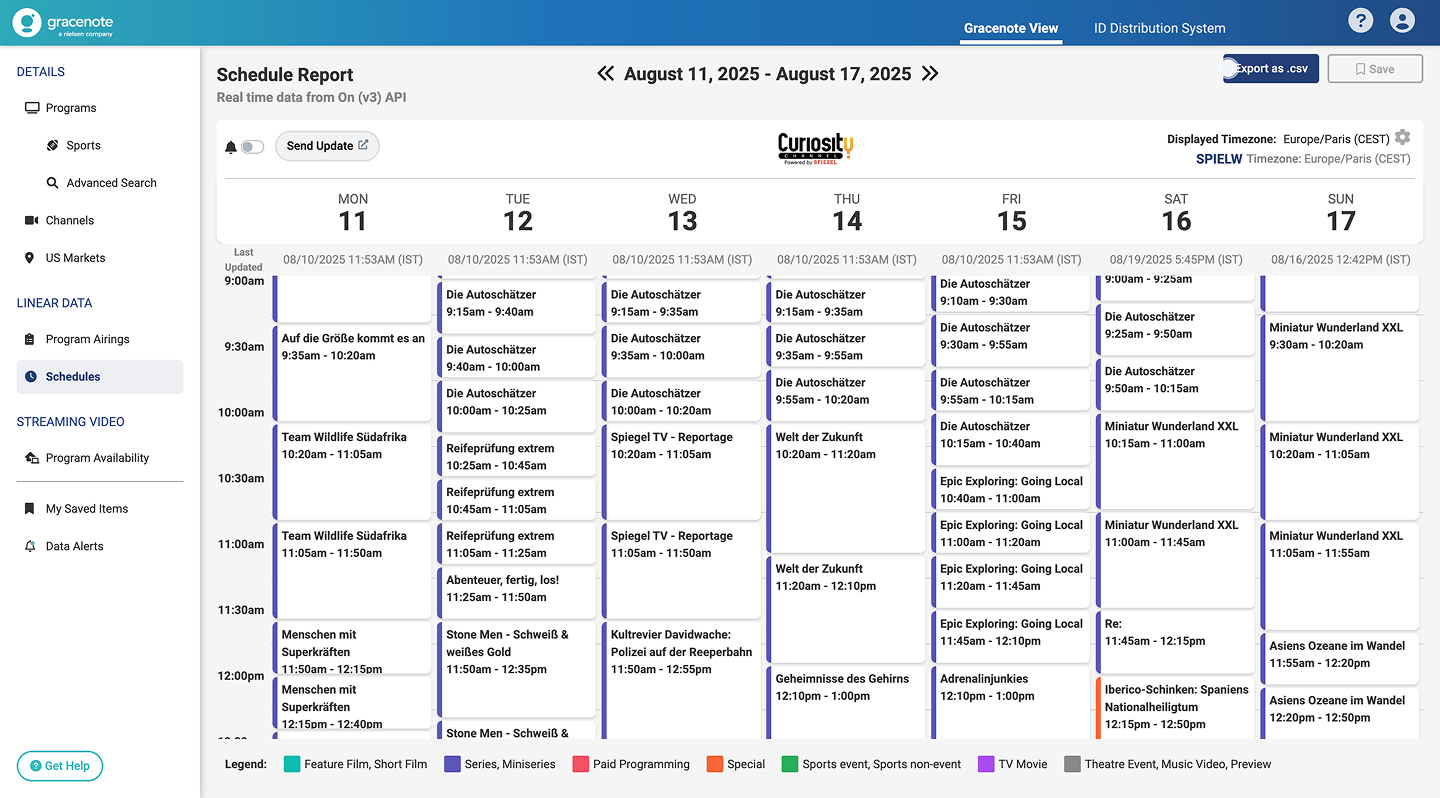
- Review the schedule data.
- Weekly Schedule: Move back to Previous Week or forward to Next Week using the arrows (<< and >>).
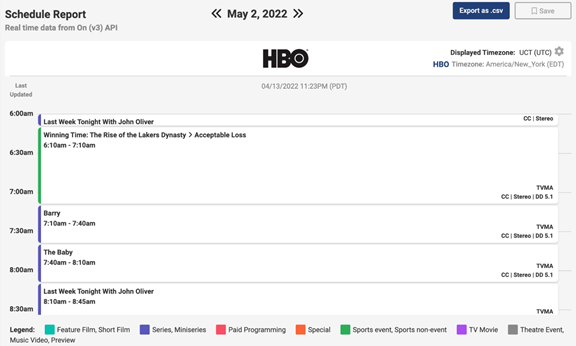
- Daily Schedule. Move back to Previous Day or forward to Next Day using the arrows (<< and >>).
Export as a .csv File
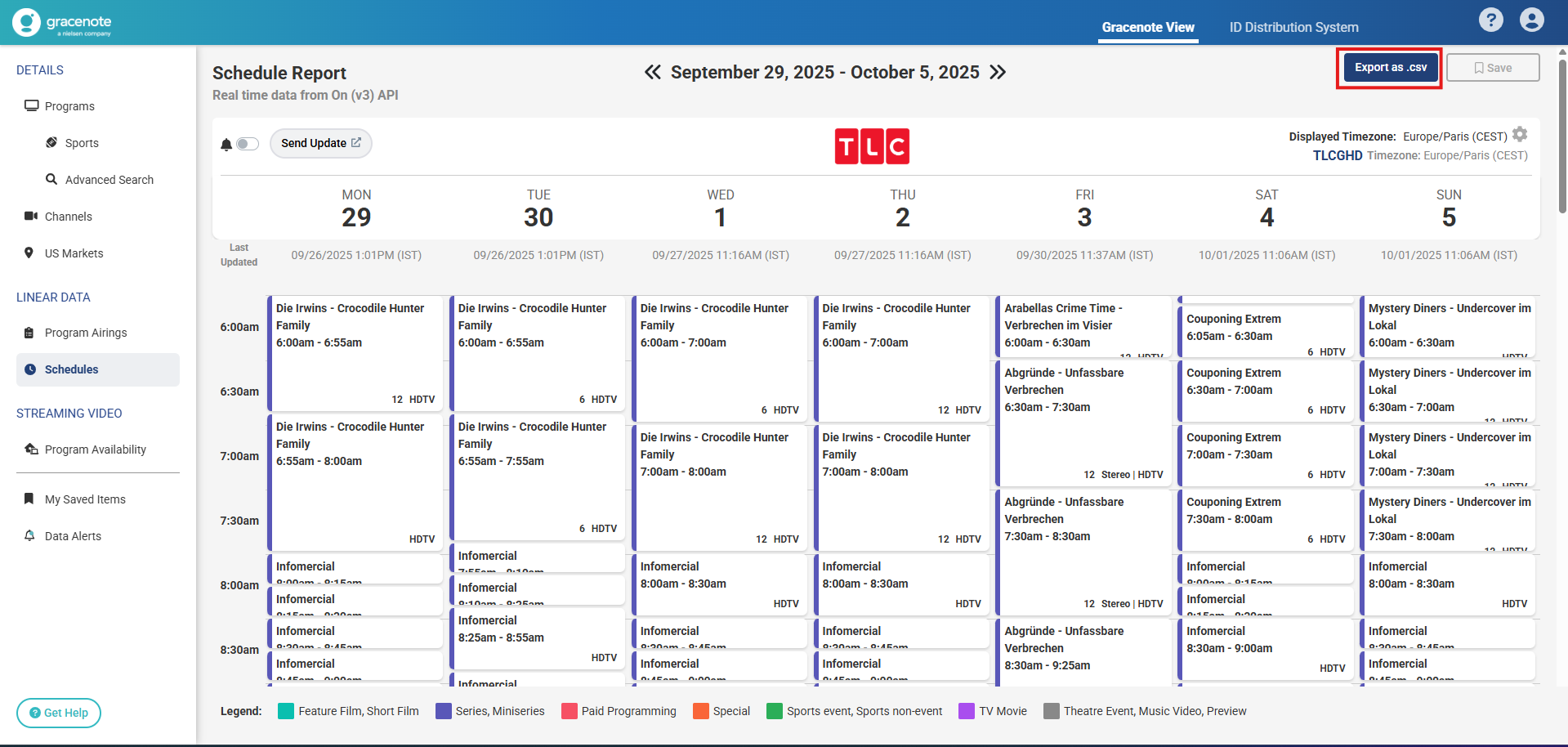
Click on the Export as .csv button to download the selected schedule(s) with TMS IDs. 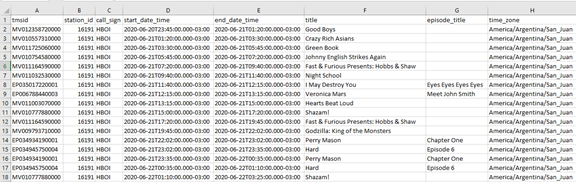
Note: This feature is only accessible by clients with the appropriate licenses in place. Reach out to your Customer Care representative to get more information
Content Rights
Using the Content Rights feature you can view and export detailed content availability data for Schedule Events.
What are Content Rights?
Content Rights (or Usage Rights) are metadata associated with linear TV schedule events. They define the content's availability for various consumer use cases on a target distribution platform, such as a streaming service or MVPD.
Content Rights are usually specific to one distribution platform, whether it be an MVPD's service or a D2C streaming service, and describe what broadcasters or content owners allow the platform to do with events appearing in the linear TV programming.
Note: Access to Content Rights data requires an entitlement. If you do not see Content Rights data, please contact your Gracenote representative. Availability of Content Rights data also varies by Channel and Schedule Event.
Content Rights
The table below shows Content Rights from Gracenote's controlled vocabulary (CV). Content Rights define content availability and usage for linear TV schedule events. This list will be extended when new use cases are added. Value formats are boolean (True/False).
| Content Right | Also known as... | Definition |
|---|---|---|
| Catchup Allowed | Replay, Lookback, Backwards EPG, Reverse EPG | The CR defines whether or not users can watch content in a given linear timeslot through Catchup from a centralized network copy in a given timeframe |
| Downloading Allowed | Sync & Go, Download to own | The CR defines whether or not Downloading of the content airing in the given linear timeslot to a mobile end user device (e.g. mobile phone, laptop, tablet) is allowed. This enables users to watch the content, usually for a defined time period, without an internet connection |
| Instant Restart Allowed | Startover, Restart, Recall, Timeshifting | The CR defines whether or not users can start playing content in a given linear timeslot after the official scheduled start time but while the content is still broadcasting |
| Live Viewing Allowed | The CR defines whether or not users can watch the live broadcast for the content in a given linear timeslot | |
| Mobile Viewing Allowed | Mobile Blanking, Blackout | The CR defines whether or not users can view the content in a given linear timeslot on their phone or tablet using an application from the service provider |
| Off Net Viewing Allowed | Non-Access Usage | The CR defines whether or not users can watch the content in a given linear timeslot outside of the provider's network |
| Open Access Allowed | Unscrambled/Cleared | The CR defines whether or not the given linear timeslot has Open Access enabled and is therefore "free to watch" |
| PPV Allowed | Pay per View | The CR defines whether or not users can purchase the content in a given linear timeslot for viewing for a price specified by the content provider |
| Screen Mirroring Allowed | The CR defines whether or not Screen Mirroring (through a device like Apple AirPlay or Google Chromecast) is allowed for the given linear timeslot | |
| Side Loading Allowed | The CR defines whether or not Side Loading (transfer of file without internet connection) is allowed for the given linear timeslot | |
| Streaming Allowed | OTT | The CR defines whether or not Streaming is allowed for the given linear timeslot |
| Trick Mode Allowed | Trick Play, FFWD/SkipAhead, Trickmode Suppression | The CR defines whether or not users can pause, fast-forward and/or rewind content in a given linear timeslot |
| User Recordings Allowed | NPVR or PVR | The CR defines whether or not users can create personal recordings, either in the cloud (NPVR) or on a personal device (PVR) for the content in a given linear timeslot |
Content Rights Parameters
Content Rights can include one or more of the following parameters. The parameters listed below can be associated with multiple Content Rights. Each Content Right can have multiple parameters assigned for scheduled events:
| Content Right Parameter | Value Format | Definition |
|---|---|---|
| Currency | ISO 4217 3-letter currency code | The CR parameter defines the currency tied to the Content Rights Parameter (e.g. Price) for a specific timeslot |
| Device Type | string | The CR parameter defines any device types for which the Content Right (e.g. Downloading Allowed) tied to a specific timeslot is applicable for |
| Expire Duration | Integer | The CR parameter defines the duration for which the Content Right for a specific timeslot applies (e.g. NPVR Catchup) |
| OS Type | string | The CR parameter defines any OS types for which the Content Right (e.g. Downloading Allowed) tied to a specific timeslot is applicable for |
| Out of Home Allowed | Boolean | The CR parameter defines whether or not the Content Right (e.g. Streaming Allowed) tied to a specific timeslot applies out-of-home |
| Price | float | The CR parameter defines the price tied to the Content Right (e.g. PPV) for a specific timeslot |
| Promotion | Boolean | The CR parameter defines whether or not a promotion code can be applied by users to purchase the given PPV event for a specific timeslot |
| Storage Type | string | The CR parameter defines the storage type for user recordings (e.g. User Recordings Allowed with type "NPVR" or "PVR") for a specific timeslot. |
| Subscription Code | Integer | |
| Time Unit | string | The CR parameter defines the time unit (seconds, minutes, hours) tied to the Content Rights Parameter (e.g. Expire Duration) for a specific timeslot. |
| Window End | ISO 8601 date/time | The CR parameter defines the windowend (last day) tied to the Content Right (e.g. PPV) for a specific timeslot |
| Window Start | ISO 8601 date/time | The CR parameter defines the windowstart (first day) tied to the Content Right (e.g. PPV) for a specific timeslot |
Viewing Content Rights Data
Content Rights are specific to Schedule Events (airings on a particular date/time), not to the parent Program record.
Steps to View Content Rights:
-
Navigate to the Schedules section in the GNView left-hand menu.
-
Generate your desired Schedule Report by selecting a channel and date range.
-
Click on any specific Schedule Event within the grid (e.g., "Die Irwins - Crocodile Hunter Family").
-
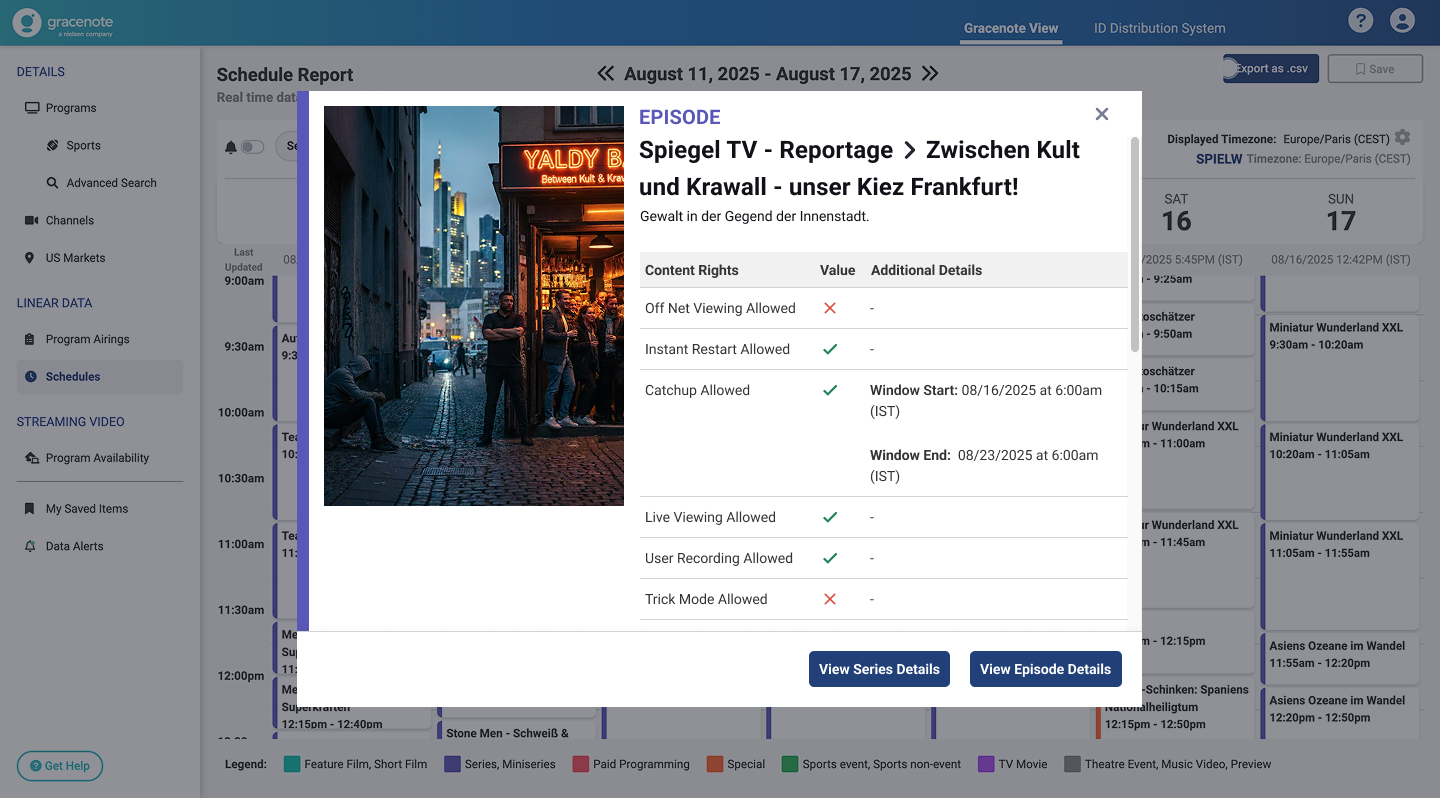
A detail pop-up will appear, which now includes the Content Rights table, showing the right (e.g., 'Catchup Allowed') and the corresponding 'Value' (✅ or ❌) per customer/platform.
Exporting Content Rights Data
You can easily export all Content Rights data along with your standard Schedule Report, allowing you to incorporate this metadata into your external processes and reporting.
Steps to Export Content Rights:
-
Navigate to the Schedules section and generate your desired Schedule Report.
-
Once the schedule grid is displayed, click the Export as .csv button located in the top right corner of the report view.
-
The CSV file will automatically download via your web browser.
-
Open the downloaded CSV. The file will now include columns containing all available Content Rights data for each Schedule Event.
About the Content Rights CSV File
The Content Rights CSV file is a schedule report that includes Content Rights fields. Below is an example of an episode, showing Content Rights fields. Other schedule-related fields are hidden. In this example, instant_restart_allowed and user_recordings_allowed rights are shown. 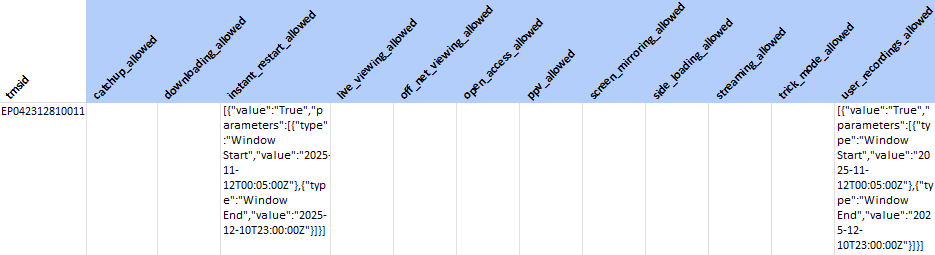
Note that Content Rights values and parameters are shown as JSON in a format similar to the following:
Code