

GN IDs Web App
Catalogs
You can organize programs into one or more Catalogs and selectively entitle them for delivery (distribution) to Gracenote data licensees. You can set up catalogs to group similar programs. For example, you can group programs in catalogs based on the program type or genre. Another example is setting up catalogs based on language to distribute programs to regional platforms.
Navigate to the Catalogs Page
- Go to gracenoteview.com and log in.
- Click ID Distribution System at the top of the screen. This opens the GN IDS web application showing the Programs page.
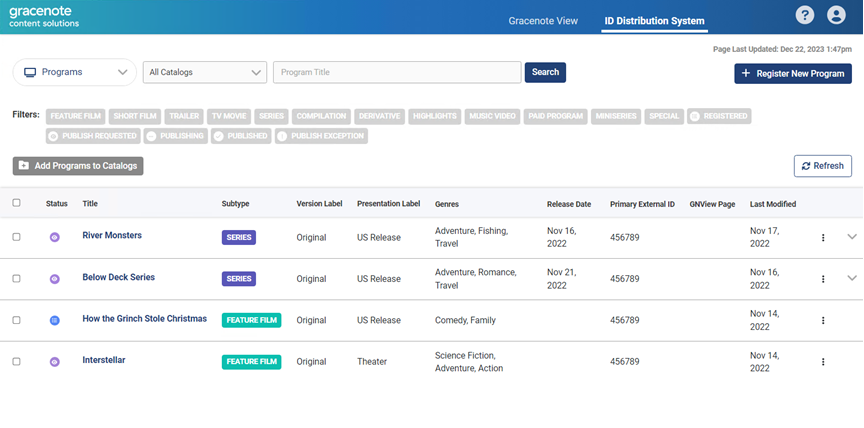
- Use the dropdown menu and select Catalogs.
Register a new Catalog
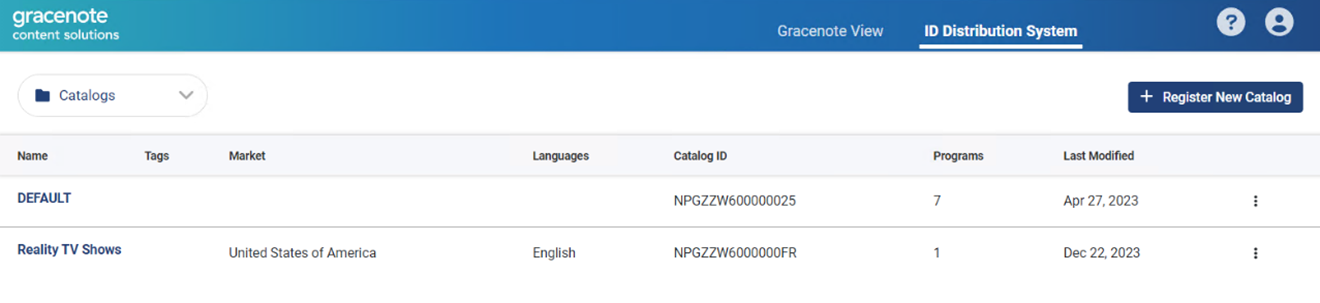
- From the Catalog page, click the Register a New Catalog button.
- On the Register Catalog page, enter information about the new catalog.
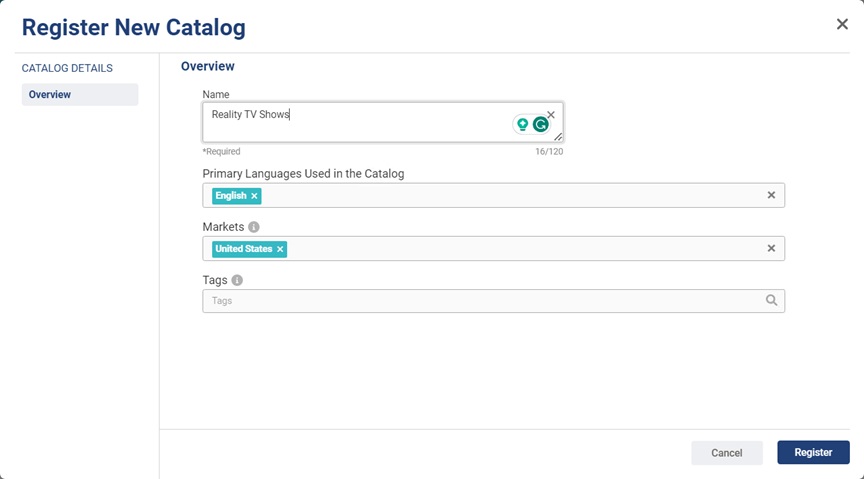
- Click the Register button.
View and Edit a Catalog
- From the Catalog page, click on a Catalog title to open its edit page.
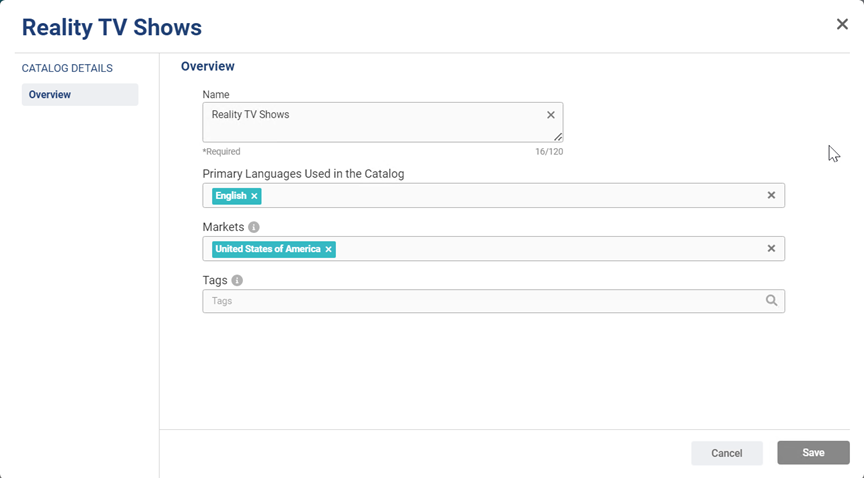
- Edit the catalog and click Save when done.
Add a Program to a Catalog
- From the Program page, select the program to add to the catalog.
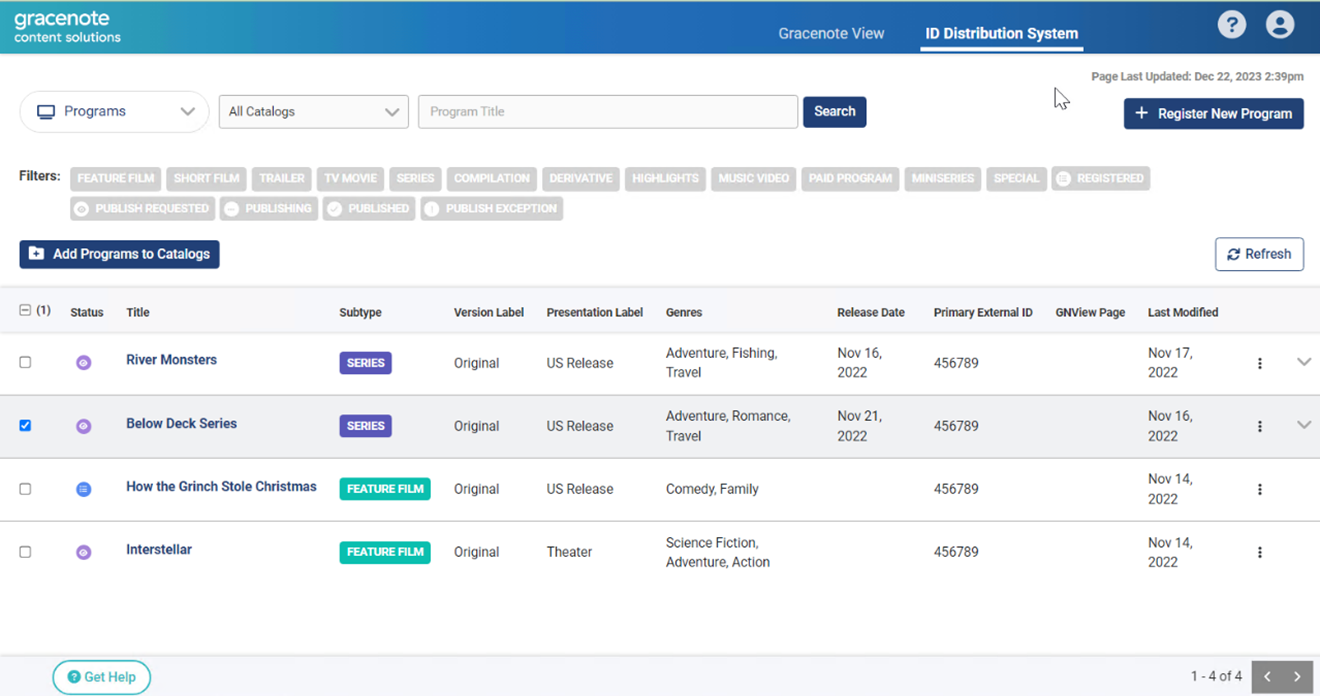
- From the Add Programs to Catalog dropdown, select the Catalog.
- Click Add. You will get a confirmation dialog that the program was successfully added.
View Programs in a Catalog
- From the Program page, click the All Catalogs dropdown and select the catalog to view.
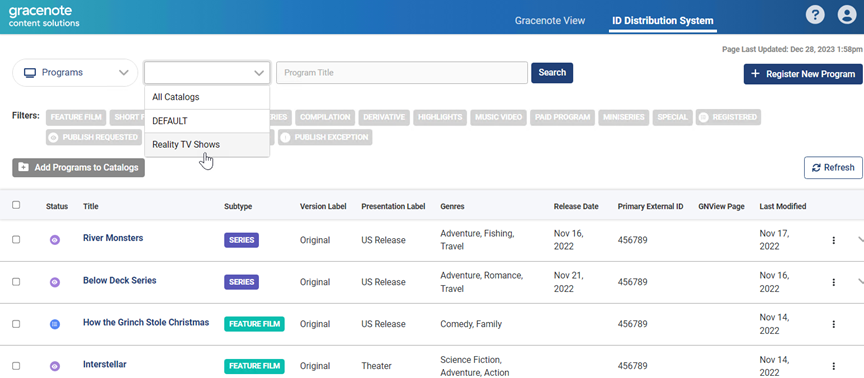
- This lists the programs assigned to the selected catalog.
Remove a Program from a Catalog
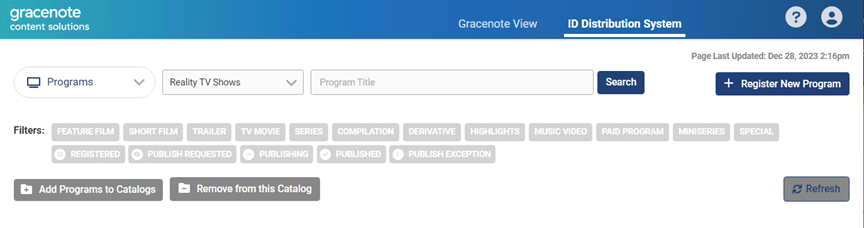
- From the Program page, click the All Catalogs dropdown and select the catalog to view.
- This lists the programs assigned to the selected catalog.
- Select the program to remove and click Remove from this Catalog and confirm its removal.
Last modified on