

Register (Create) Programs
Register a program to create it in GN IDS.
Register a New Program Using the UI
This section describes how to register new movies or show programs.
There are two ways to register programs:
- Register a Program
- Using Bulk Program Registration
GN IDS broadly divides programs into movies and shows. Each of these has several subtypes.
Movies subtypes:
- Feature Films
- Short Films
- Trailers
- TV Movies
Shows subtypes:
- Compilations
- Derivatives
- Highlights
- Miniseries
- Music Videos
- Paid Programs
- Series
- Specials
Note: A series is a program of type show and subtype series. Series can include seasons and episodes. An episode is a special kind of program that requires additional metadata for registration, such as season and episode number. To register an episode program, see Register a New Episode.
Register a Program
To register a new movie or show using the Web App UI:
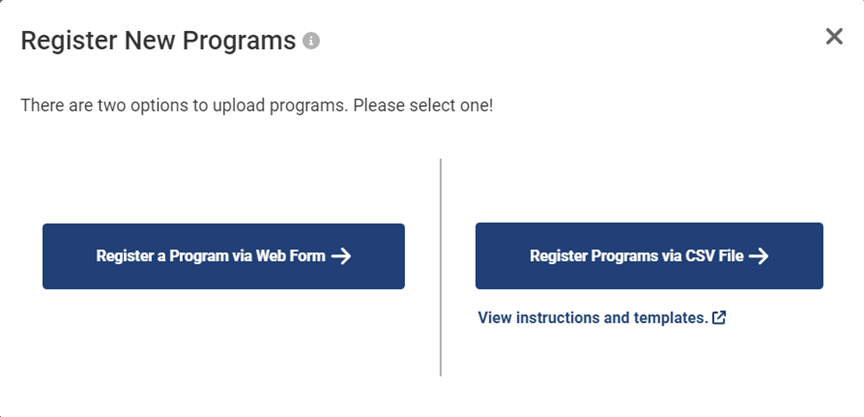
- Click the Register New Program button and select Register a Program via Web Form.
- On the Register page, add the key metadata required for registration. The required fields for registration are: Sub Type, Title Language, and Title.
- Optional when registering: Enter additional information about the program, such as Descriptions and other metadata. Some of this information will be required for publishing. See Publish a Program for details.
- Click the Register button.
- At the confirm registration prompt, click Register, or click Cancel to make corrections.
Note: The Register button will be inactive if there are missing fields. The register page shows missing information in red text.
Register a New Program Version or Presentation
To register a new version or presentation of a program:
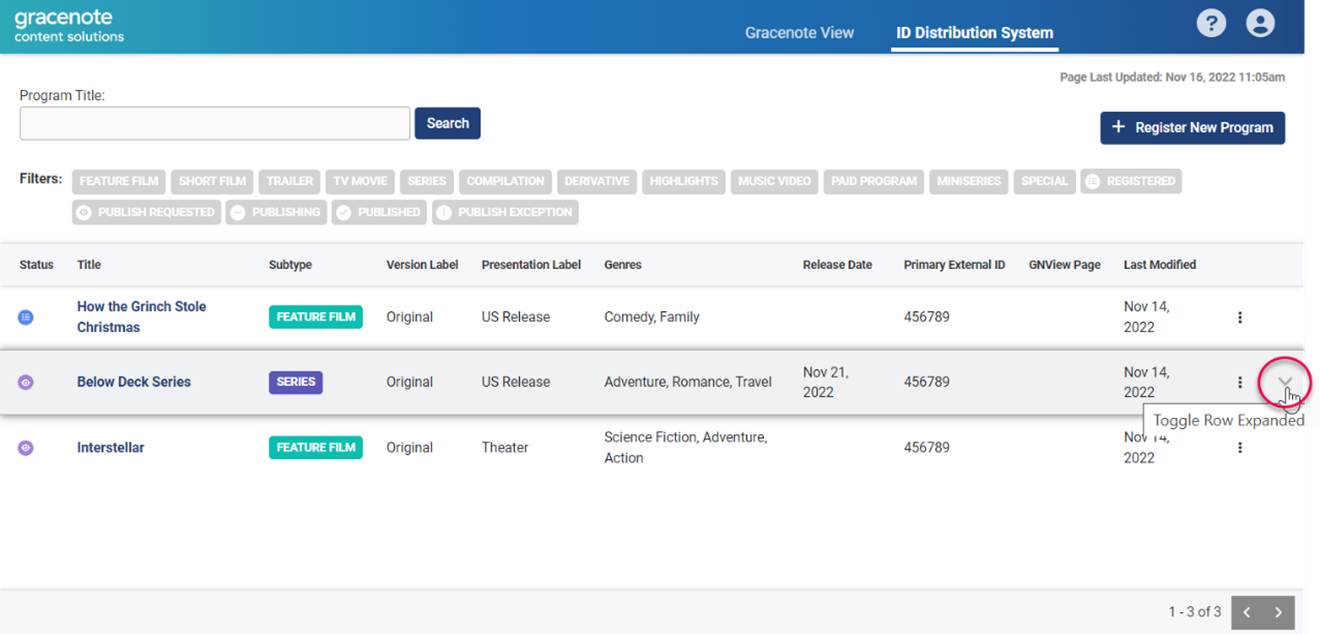
- Click the dropdown icon to the right of the program row.
- Select either Register a New Version or Register a New Presentation.
- Fill in the required fields as described in Register a Program.
Register a New Season of a Series
To register a new season of a series:
- Navigate to the season's parent series.
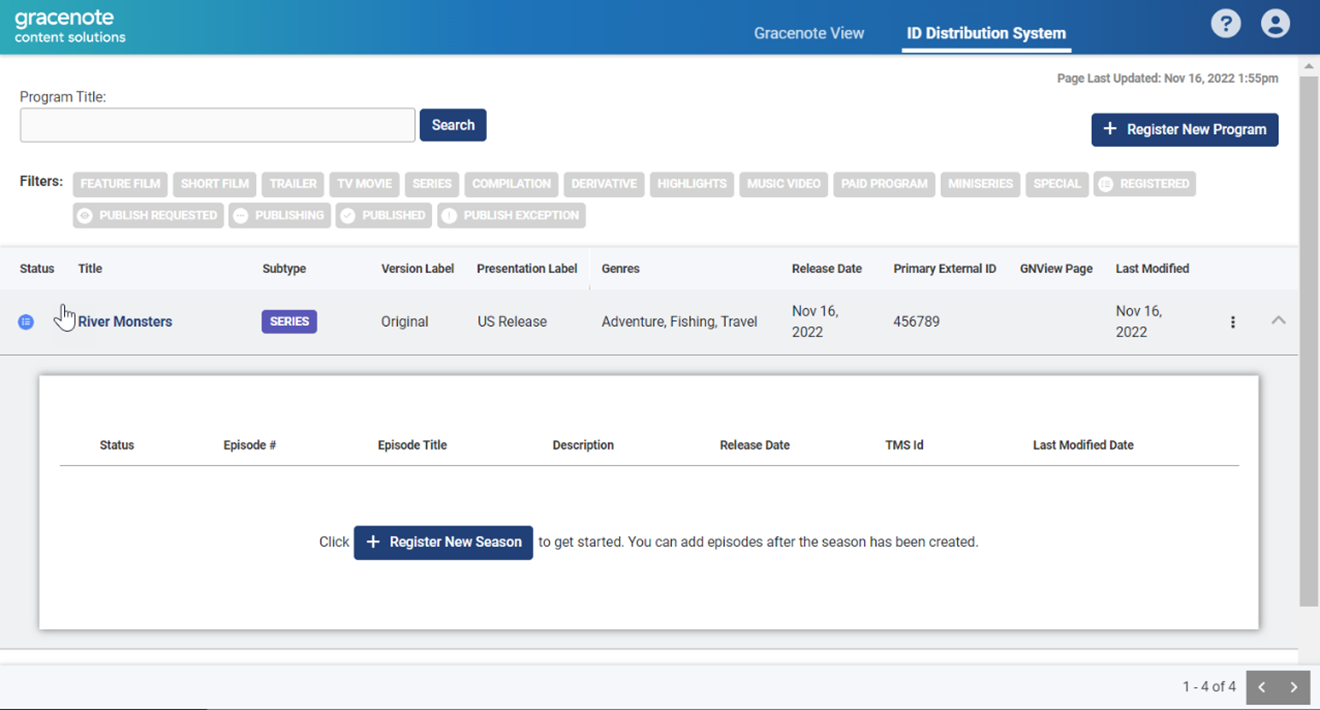
- Click the toggle row expand button to the far right of the series row. This opens the season panel.
- Click the Register New Season button.
- Add metadata for the season.
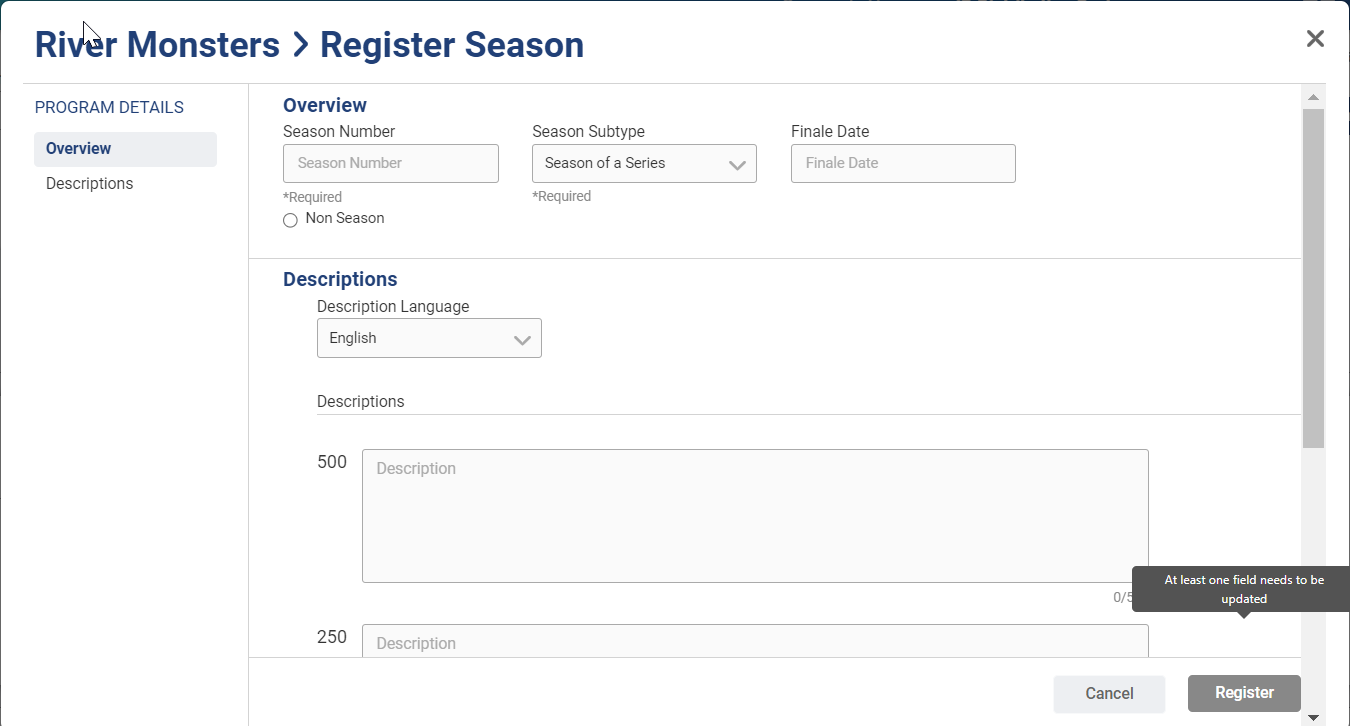
- Click the Register button.
- At the confirm registration prompt, click Register, or click Cancel to make corrections.
Register a New Episode
An episode is a special kind of program that requires additional metadata for registration, such as season and episode number.
To register an episode:
- Click the toggle row expand button to the far right of the series row. This opens the season panel.
- Use the Season # dropdown to select a season.
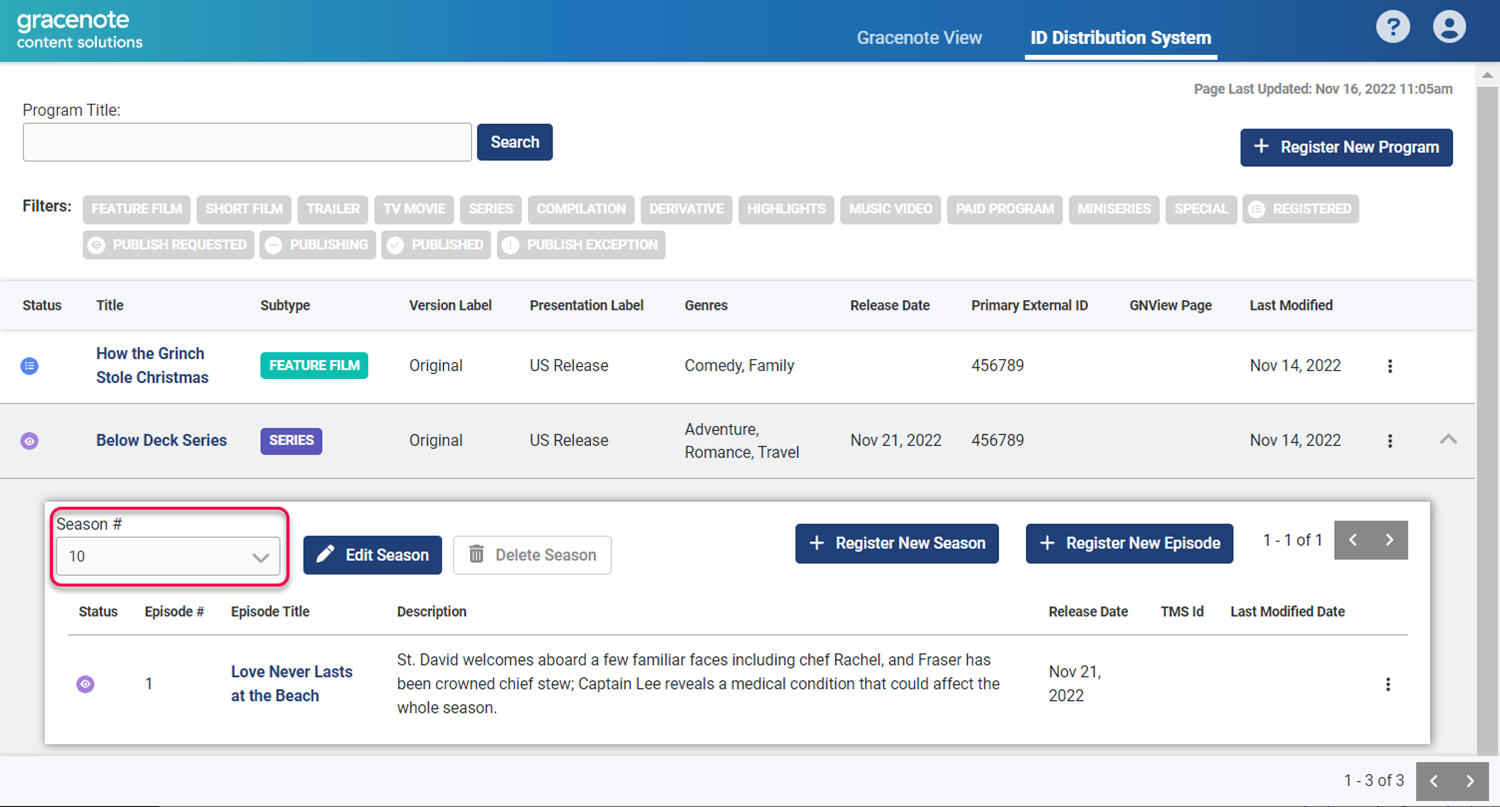
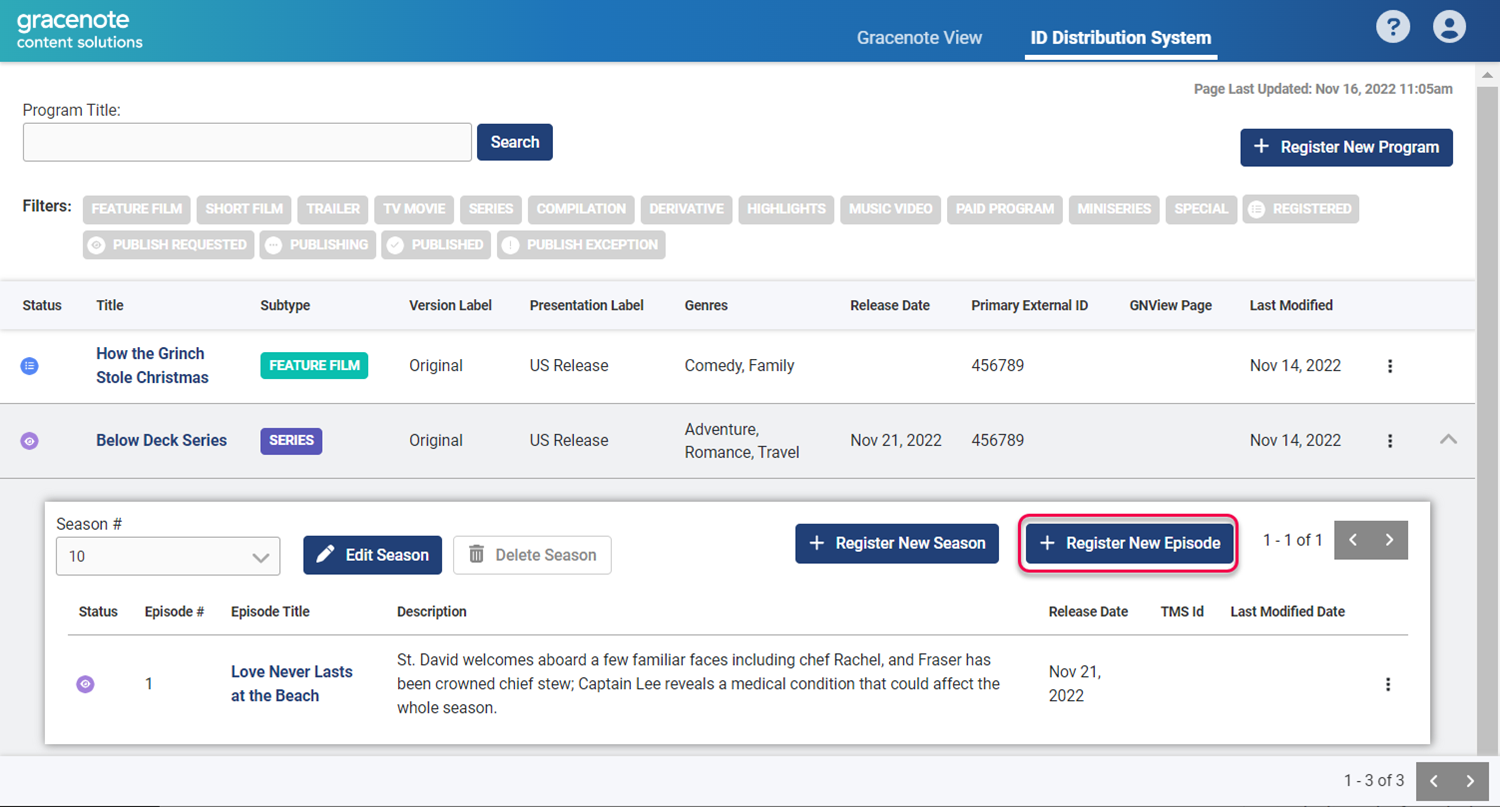
- Click the Register New Episode button.
- Make changes and additions as needed.
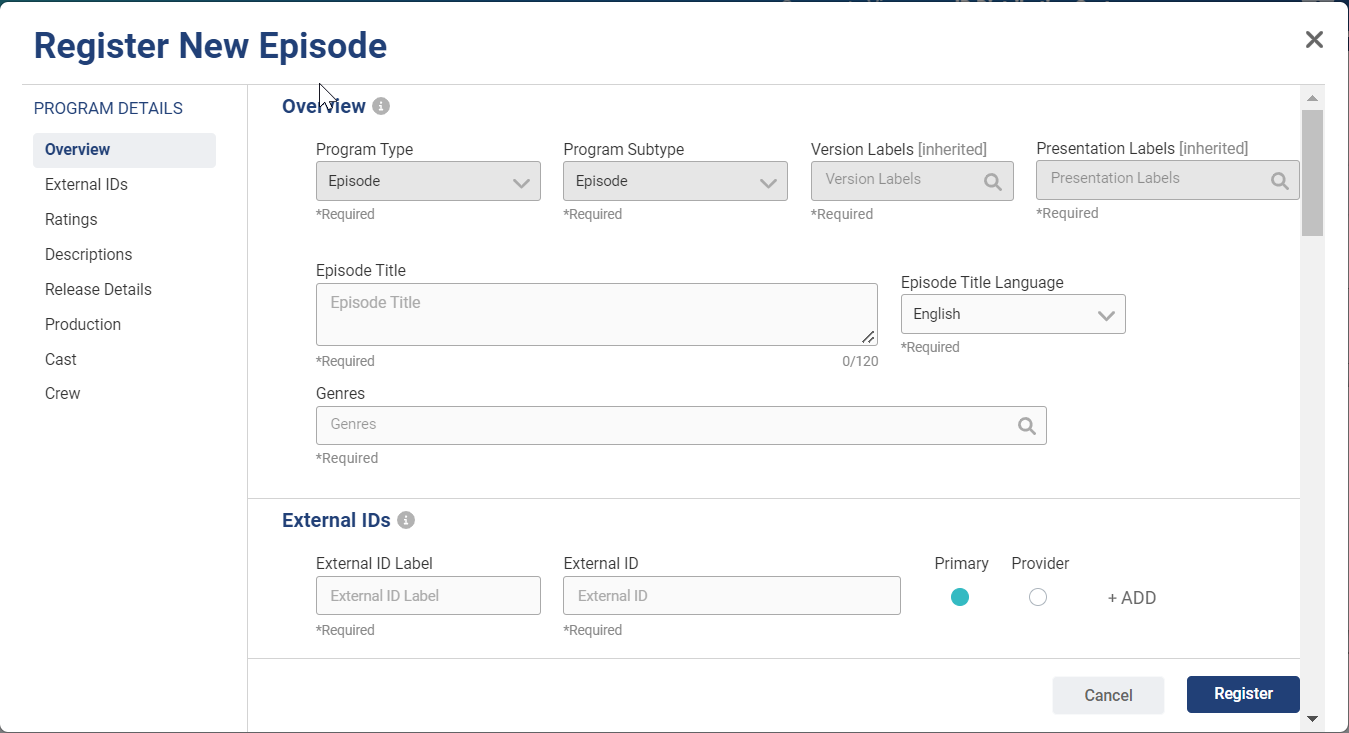
- Click the Register button.
- At the prompt, click Register to confirm the request.
Using Bulk Program Registration
The GN IDS API and Web App now support bulk program registration. This includes being able to create new program hierarchies (creating a new movie root, version, and presentation at the same time) and being able to extend existing program hierarchies (new seasons and episodes for existing shows for example).
Bulk registration happens in an asynchronous fashion, with the creation of a batch. Each batch is validated on submission for payload-level issues (missing fields, value types, etc.). Batches are processed in the background, and the results/errors are added to the batch.
Note: Bulk program upload process is for program registration only. You cannot use it for program updates or publishing requests.
Also, to register and link images to programs, see Registering (Creating) Images.
To register new movies or shows using Bulk Program Registration:
- Download (or Save Link As) the spreadsheet. This spreadsheet is in .xslx format and contains examples and templates to upload programs.
- Follow the template instructions to correctly populate program information. This template is a reference guide for how to format your CSV for Bulk Import. We recommend you open this template in Excel or Google Sheets. Use the Movie and/or Show tabs to fill in your data depending on your program type. There is a maximum of 1000 rows for each template.
- Do not modify rows 1-4. These rows are for reference and will cause your upload to fail if modified.
- See the Glossary tab for terms and additional information. See the Controlled Vocabulary (CV) tab for fields that require CV values. There are several fields that require CV with camel case formatting. Refer to the Examples tab to see a completed template.
- After creating the CSV file, return to the GN IDS Web App.
- Navigate to the Programs page and click Register New Program.
- Click Register Programs via CVS File.
- On the Register Step 1 page, locate and upload your bulk program registration CSV file.
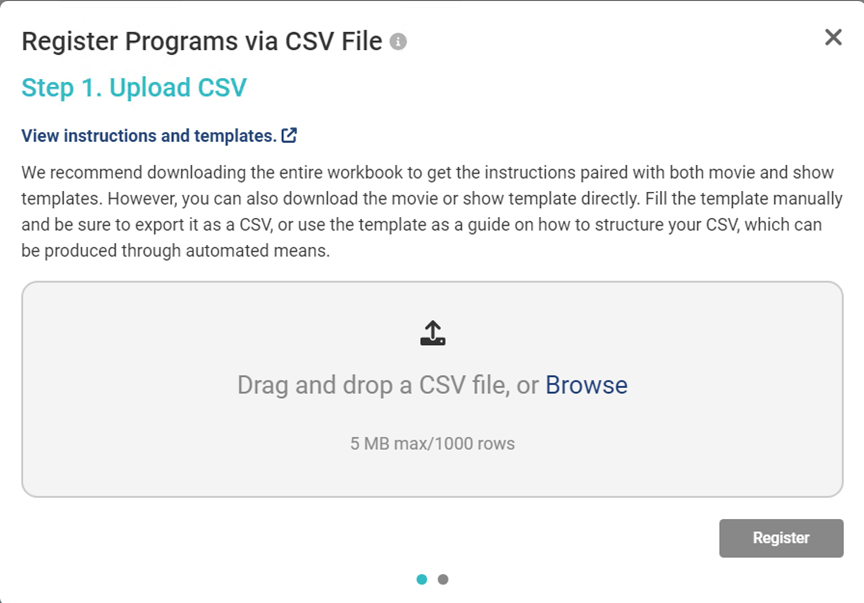
- Click Register button.
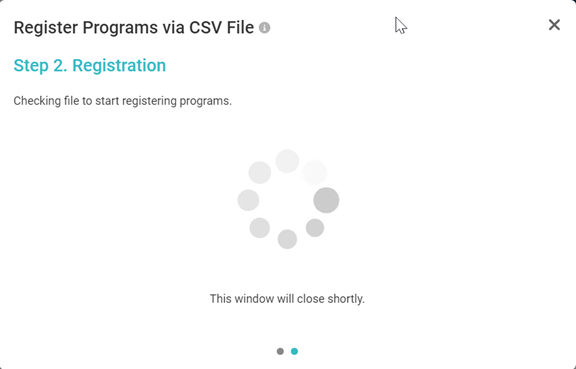
- On the Register Step 2 page, GN IDS reads the CSV file for proper formatting and registers the new content.
Check Program Import Status
-
Go to gracenoteview.com and log in.
-
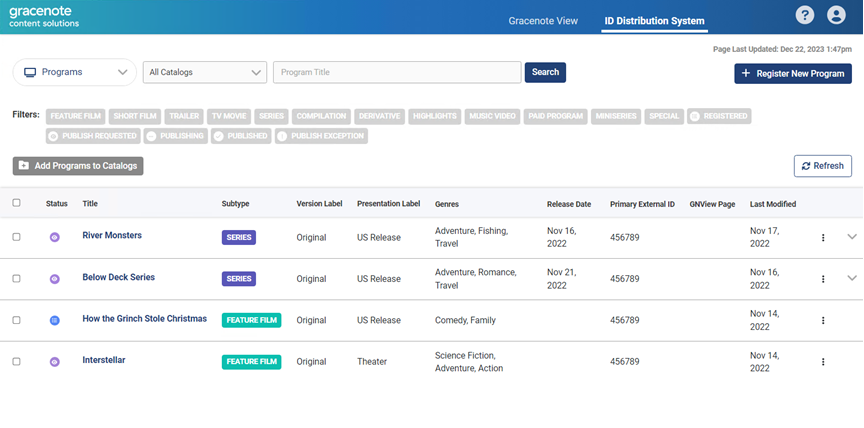
Click ID Distribution System at the top of the screen. This opens the GN IDS web application showing the Programs page.
-
Use the dropdown menu and select Import Status.