
View Programs
Source Data Assets
Source data assets in GN IDS are the objects and their metadata that you create and manage. For GN IDS, there are three top-level assets:
- Catalogs
- Images
- Programs
Programs are further divided into Movies and Shows:
Movies
- Root
- Version
- Presentation
Shows
- Root
- Version
- Presentation
- Series
- Season
- Episode
Navigate to the Programs Page
- Go to gracenoteview.com and log in.
- Click ID Distribution System at the top of the screen. This opens the GN IDS web application showing the Programs page.
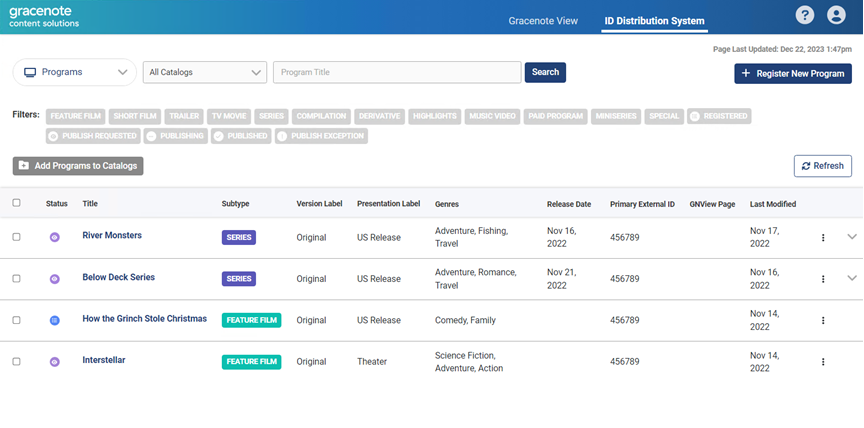
To navigate back to the Program page from other pages, use the dropdown menu. Select Programs.
View and Edit a Program
To view and edit a program:
-
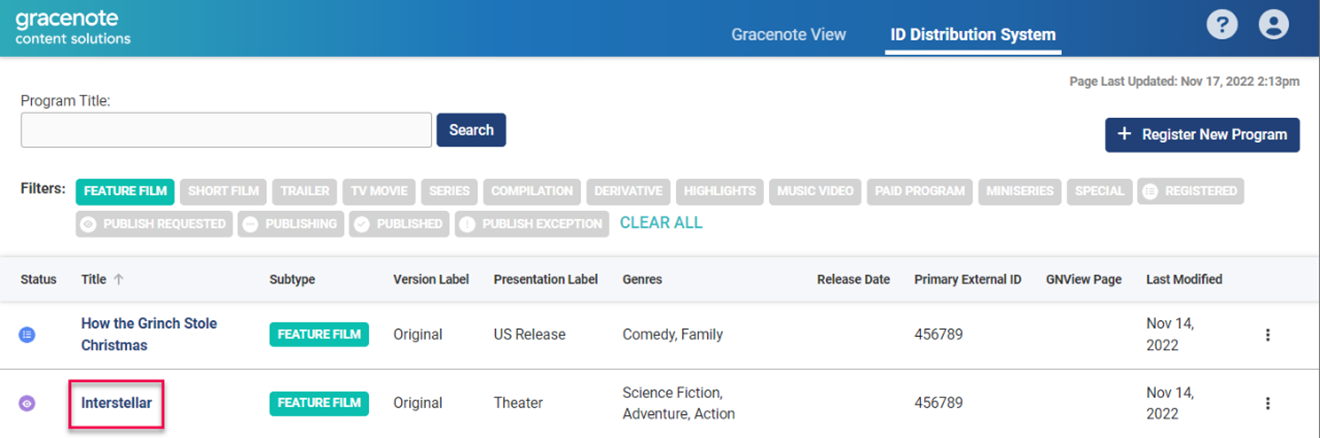
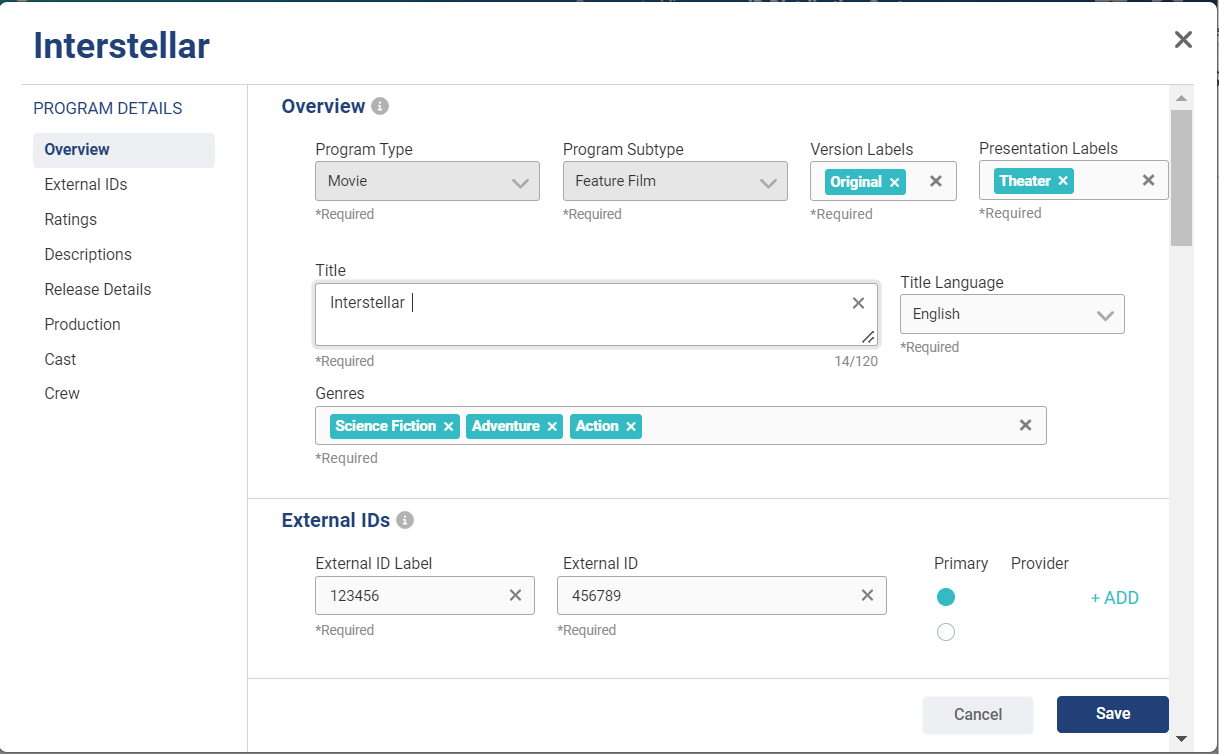
Click on a program title to open the program's edit page.
-
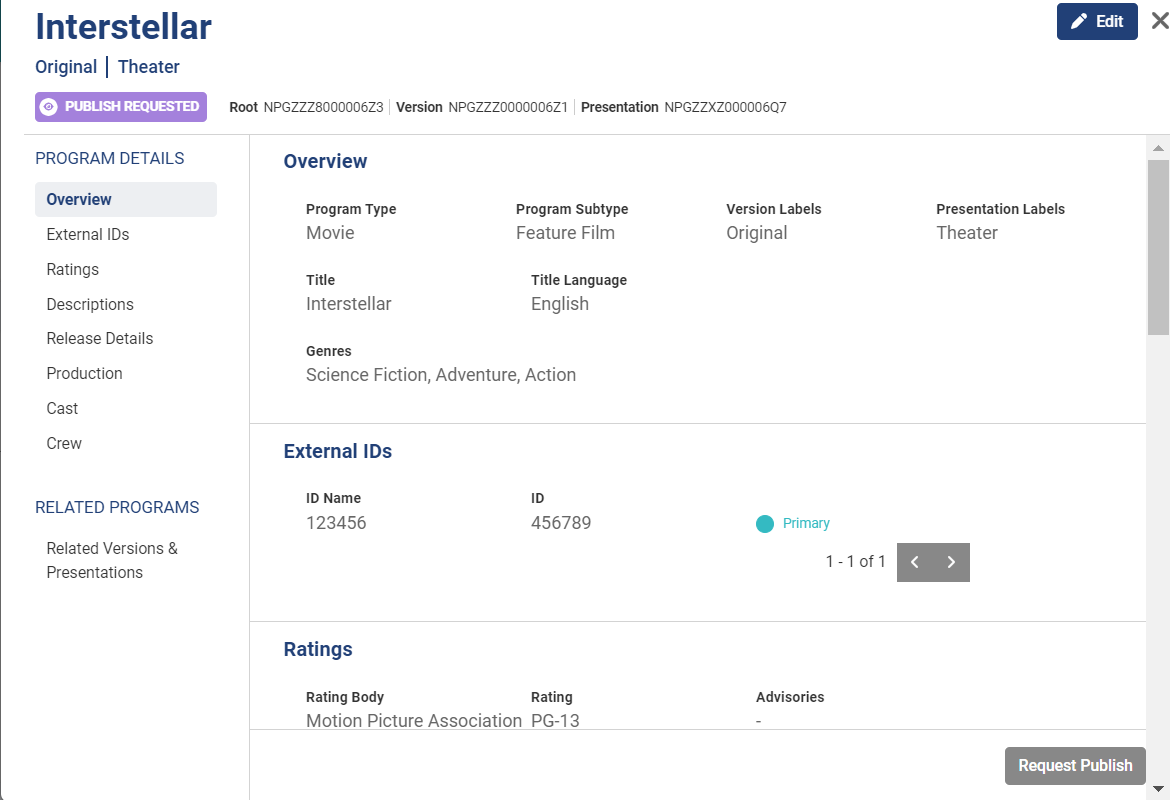
From the program's details page, use the side menu to view details.
-
On the program's edit page, click the Edit button.
-
Make changes and additions as needed, then click the Save button.
View and Edit a Season
To view and edit a series' season:
-
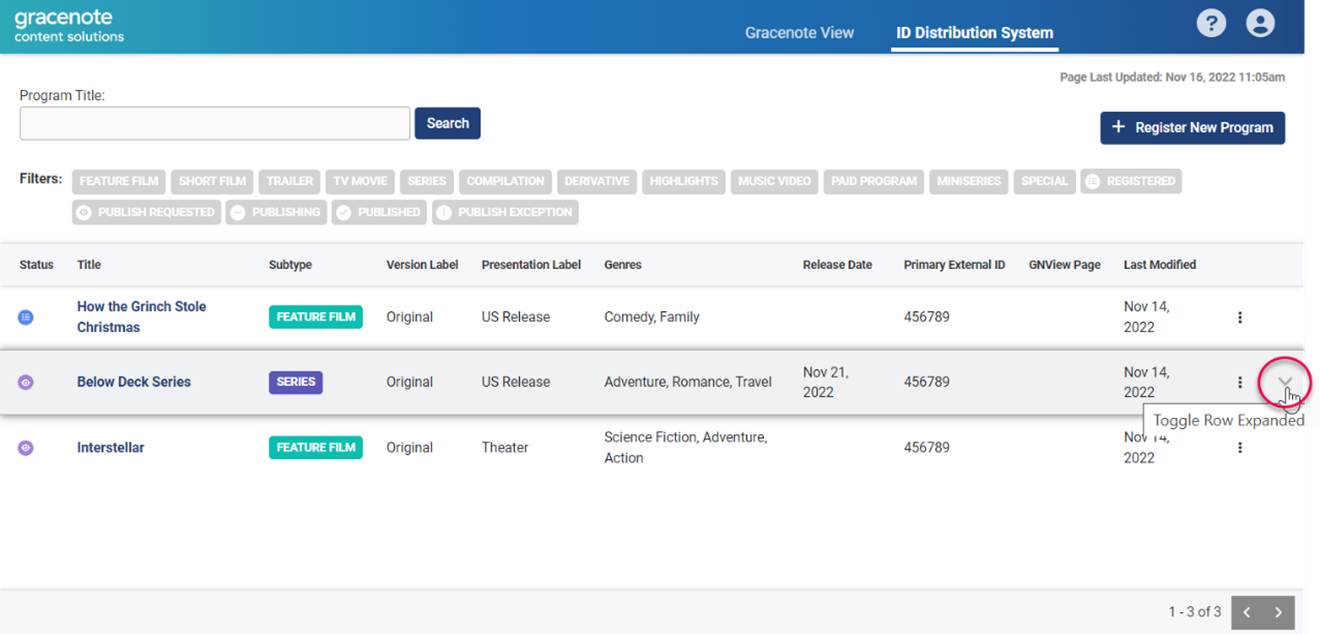
Click the toggle row expand button to the far right of the series row. This opens the season panel.
-
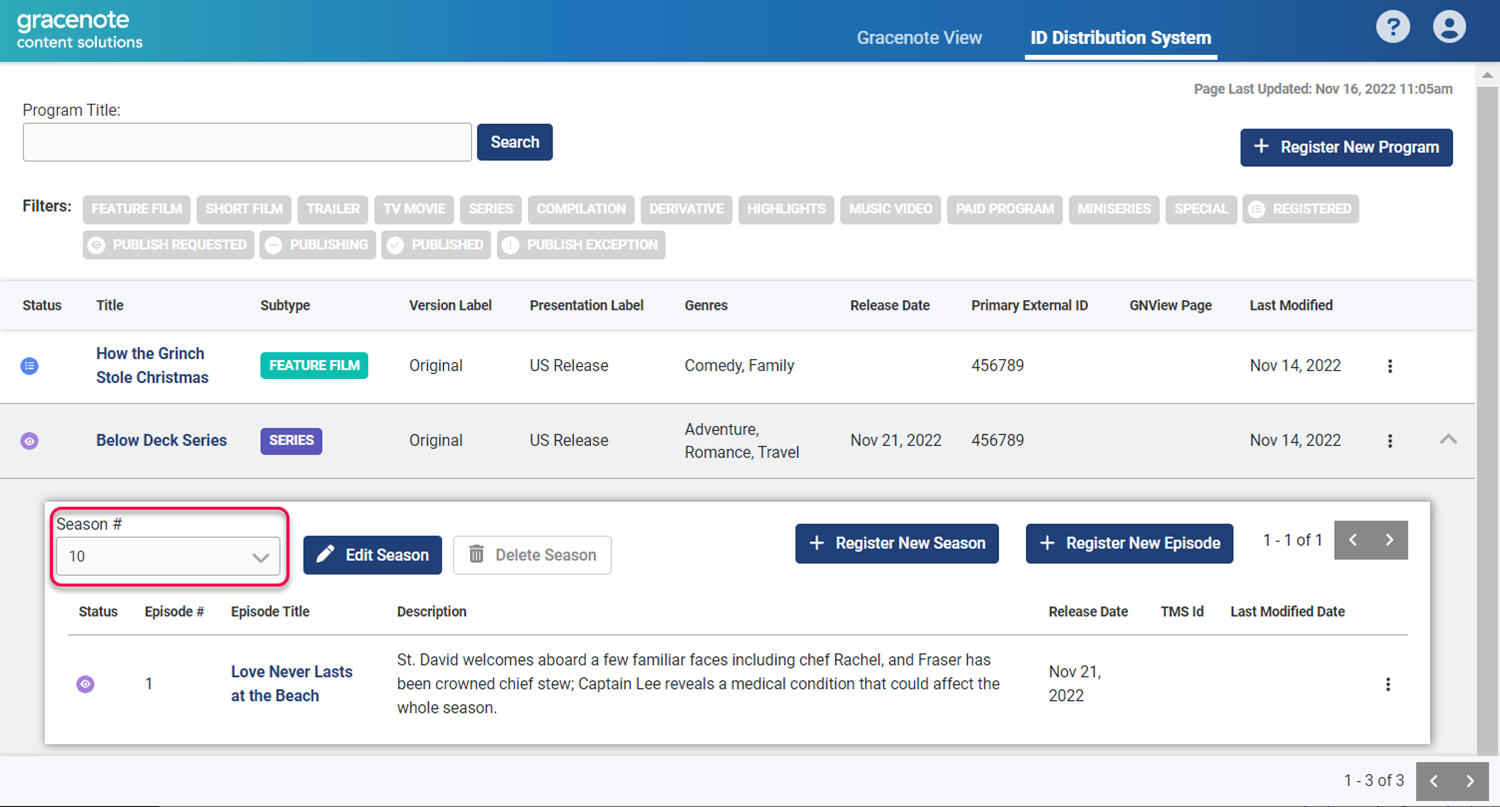
Use the Season # dropdown to select a season.
-
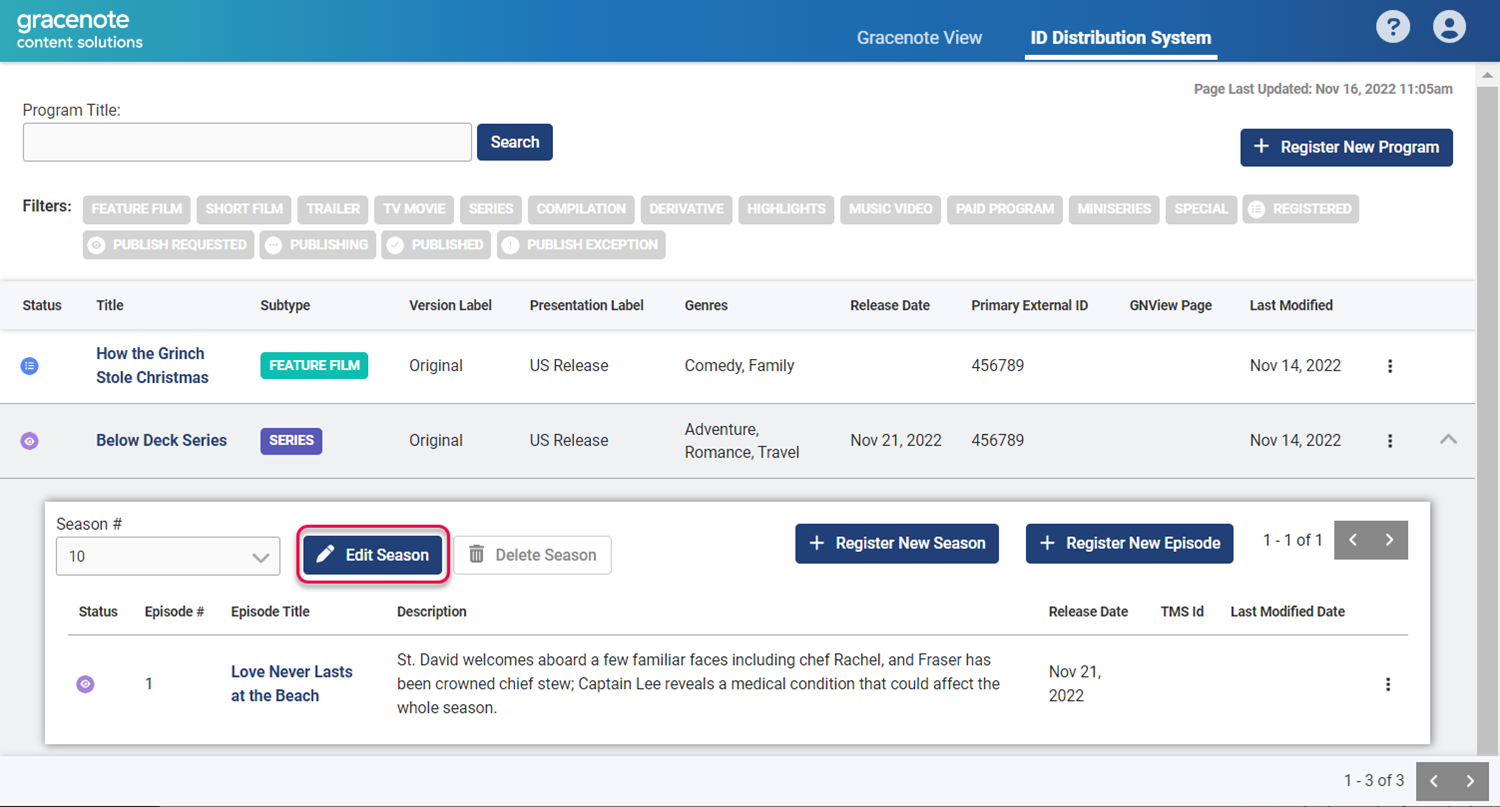
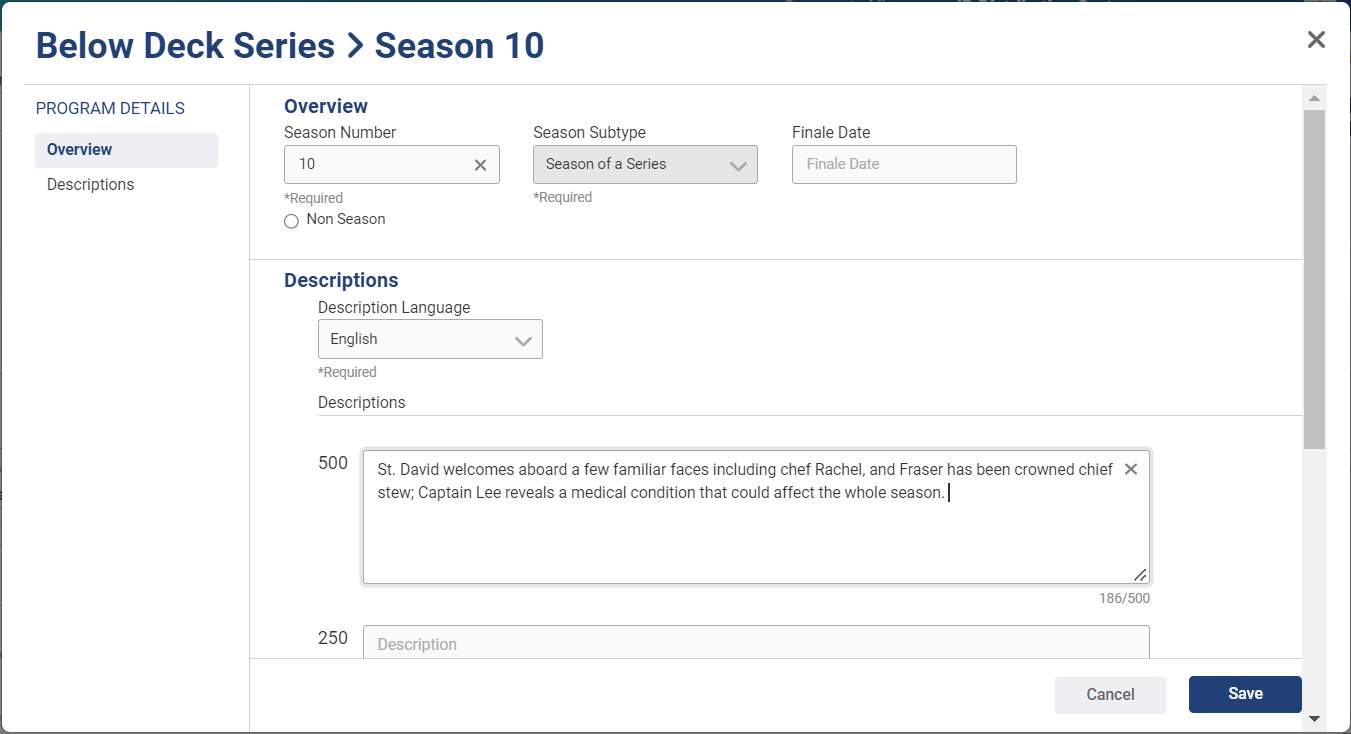
Click the Edit Season button.
-
Make changes and additions as needed.
-
Click the Save button.
View and Edit an Episode
To view and edit an episode:
-
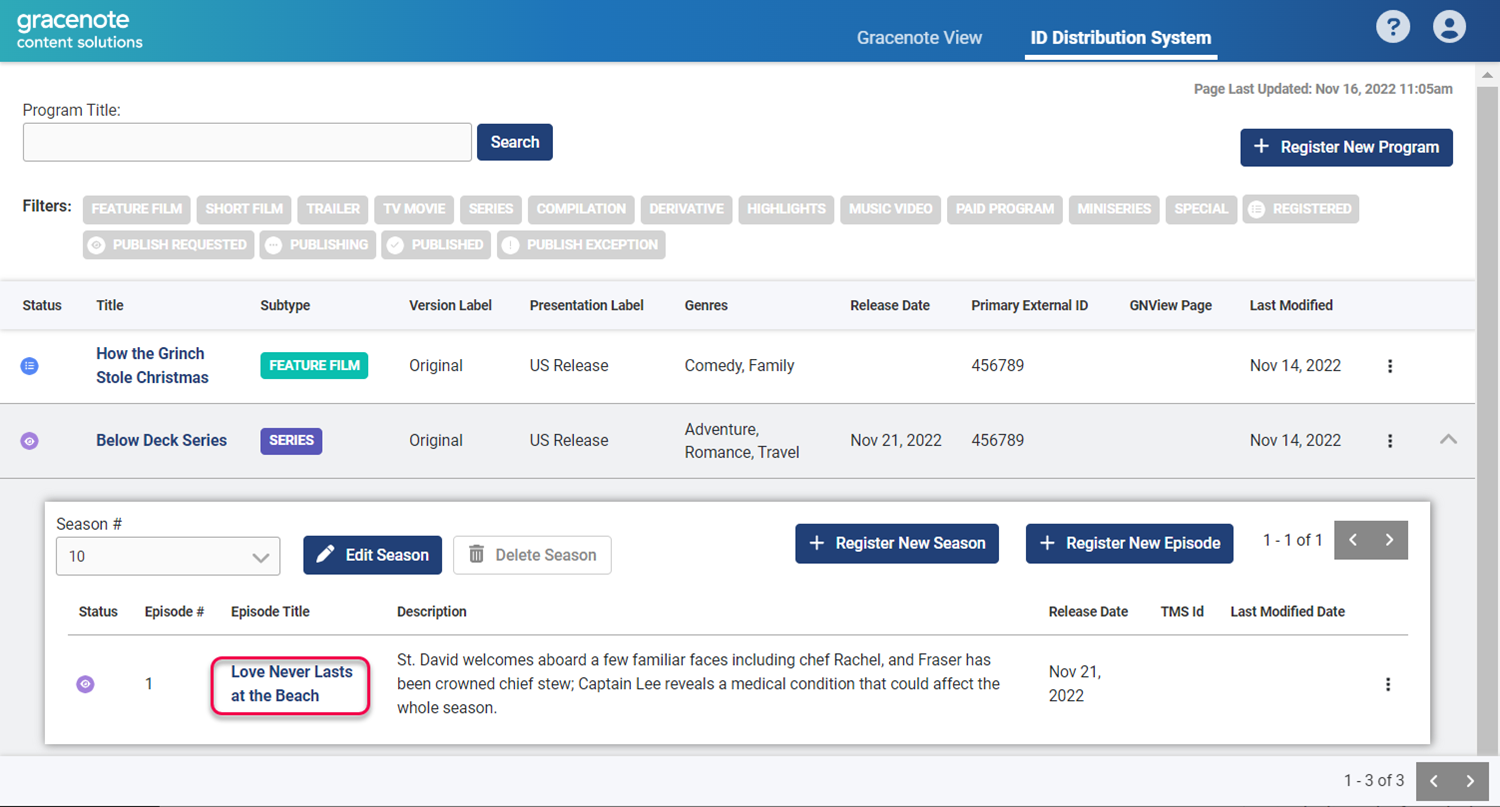
Click the toggle row expand button to the far right of the series row. This opens the season panel.
-
Use the Season # dropdown to select a season.
-
Click on an episode title to open its edit page.
-
Click the Edit button.
-
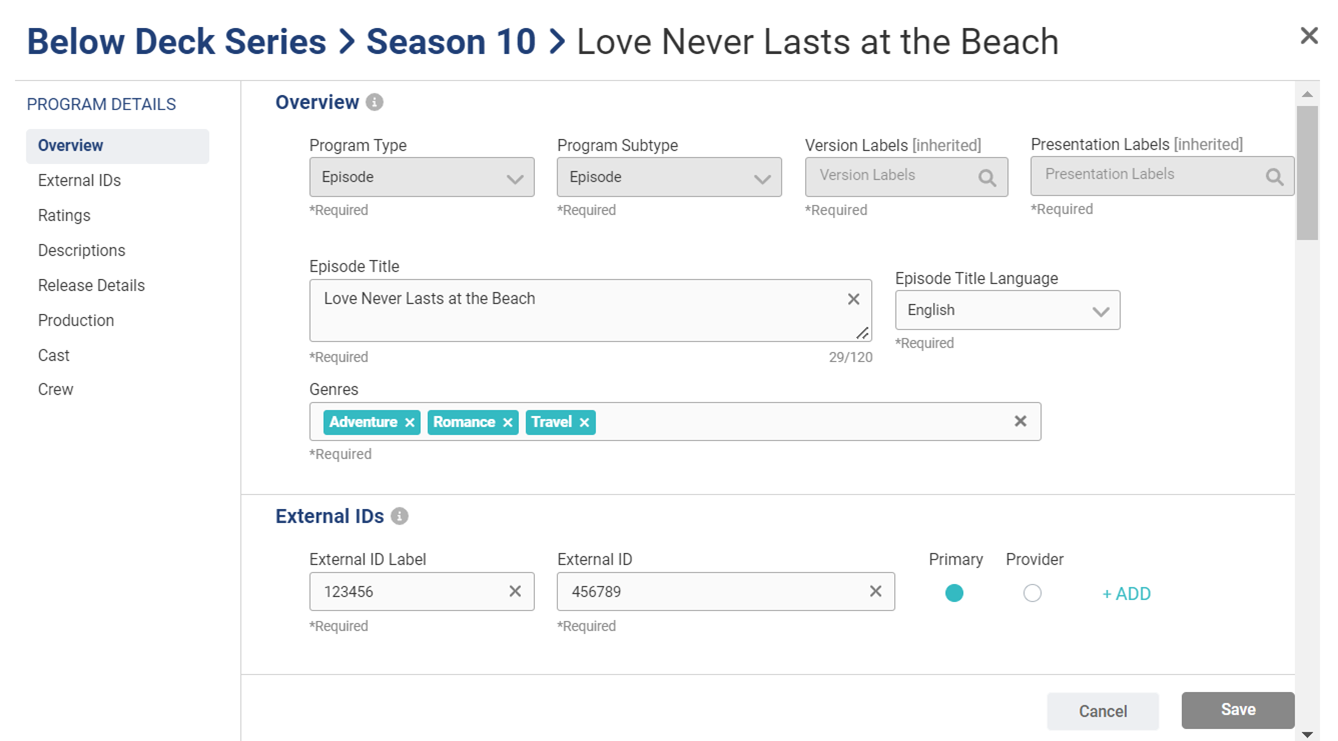
Make changes and additions as needed.
-
Click the Save button.
View Certified Records
There are two ways to view Gracenote Certified Records for programs you publish with GN IDS. If the published program already exists in Gracenote data sets, you will also see the certified Gracenote editorial content associated with the program.
You must have a Gracenote View license to view this data.
-
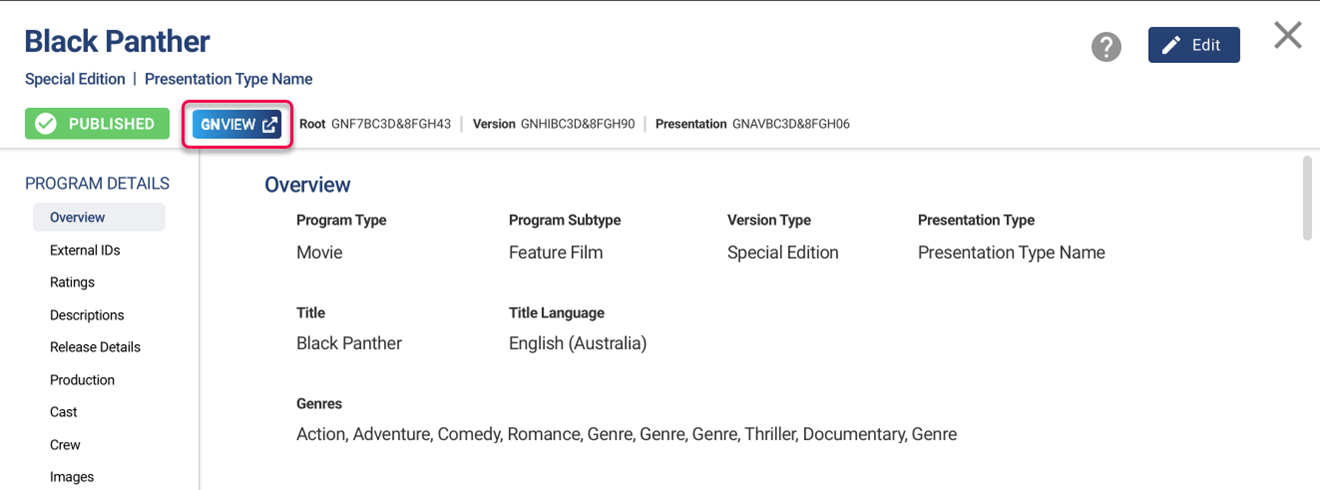
From the program's edit page, click GN View located above Program Details to display the certified program data.
-
Click the GN View button under the GN View Page column to display the certified program data.
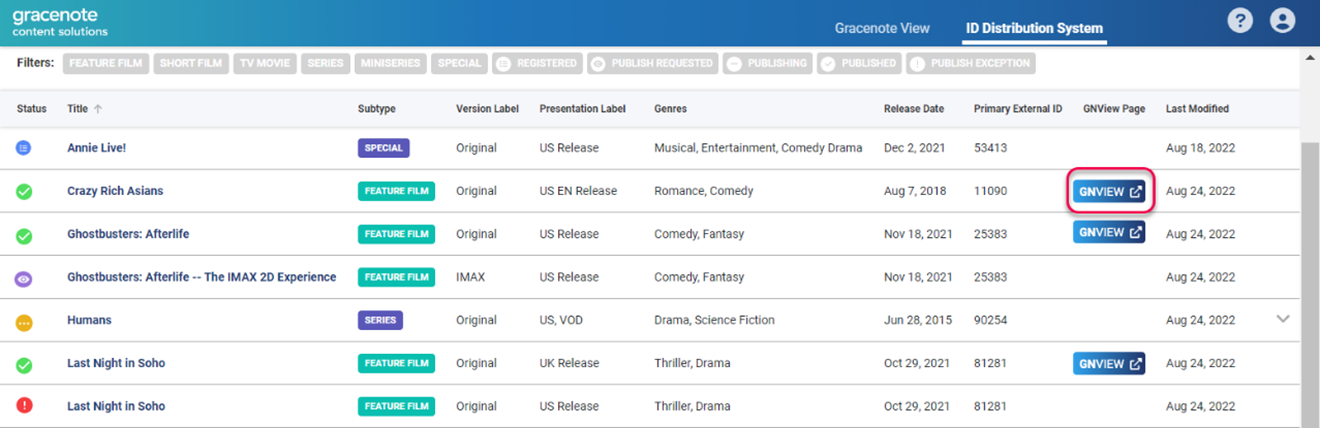
Example
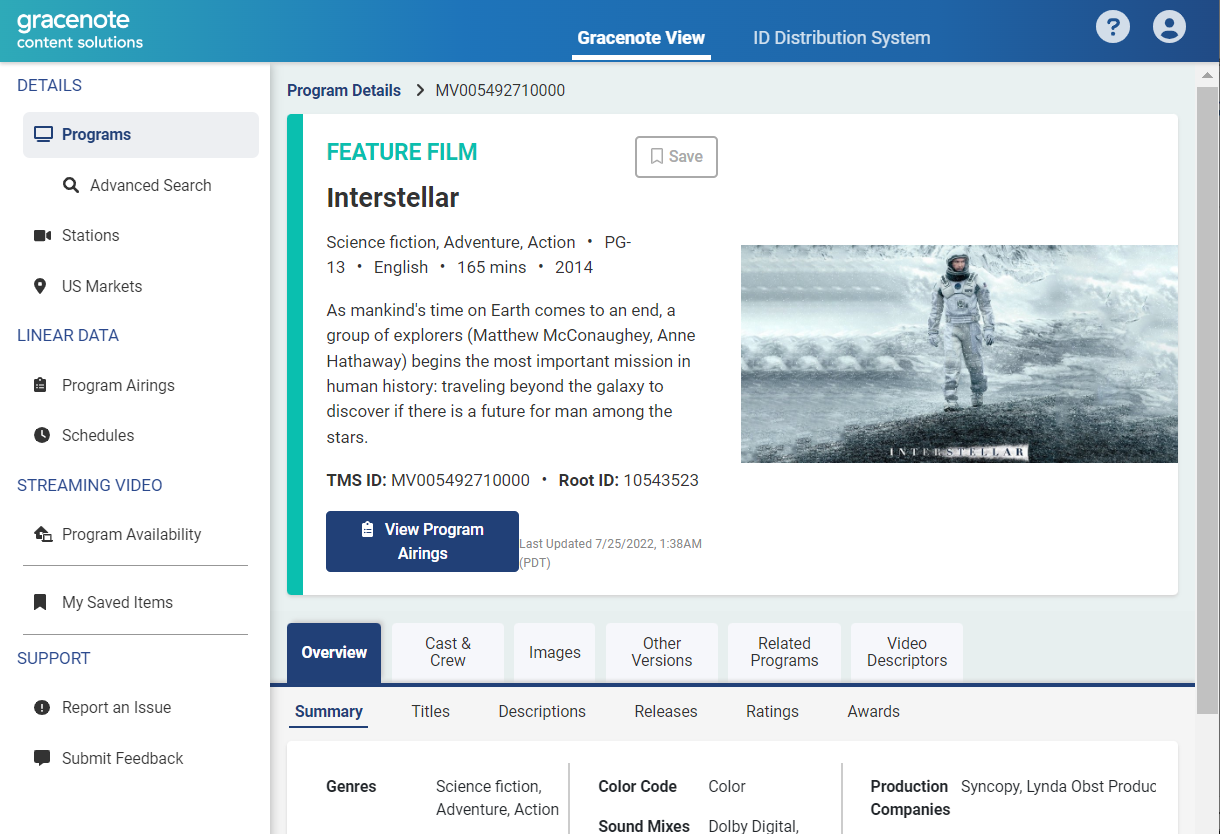
Below is the certified data for Interstellar in Gracenote View: